Tutorials: Publish a Flow

Learn how to publish a Flow with missio™ Canvas.

Required access: Voxtelesys Portal


Publishing a flow creates a new version from your current workspace. A version is a snapshot of your flow. Once published, you can assign an Environment(s) to the version, or copy its GUID to execute the version with the Flow API.


*Disclaimer: You will need to have Voice API enabled on your account to do this you will need to open a ticket with support.


Last Updated: 8/19/2026
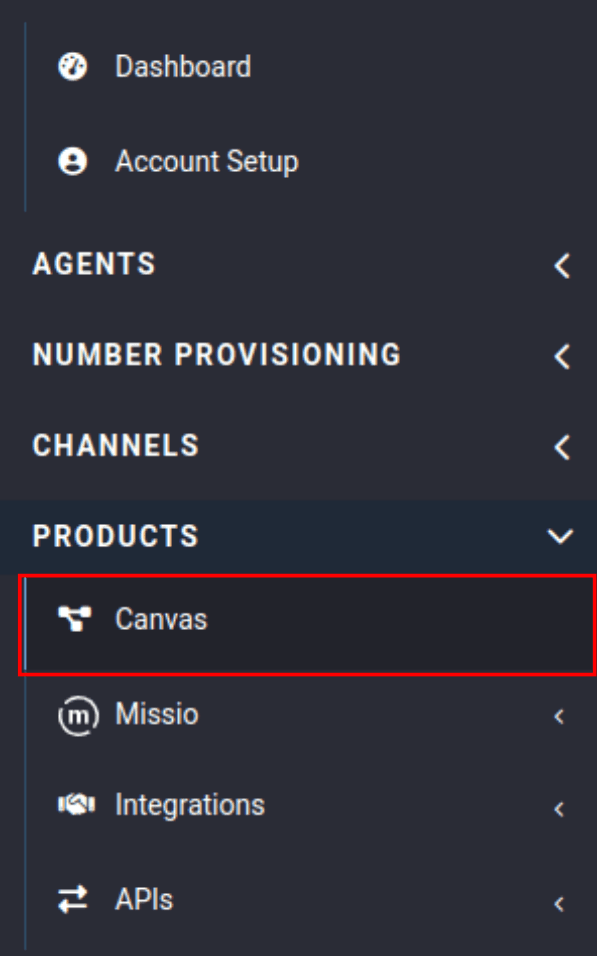
image of flow builder tab on sidebar


You can go to Canvas from the side bar of the portal, located in the Products category.

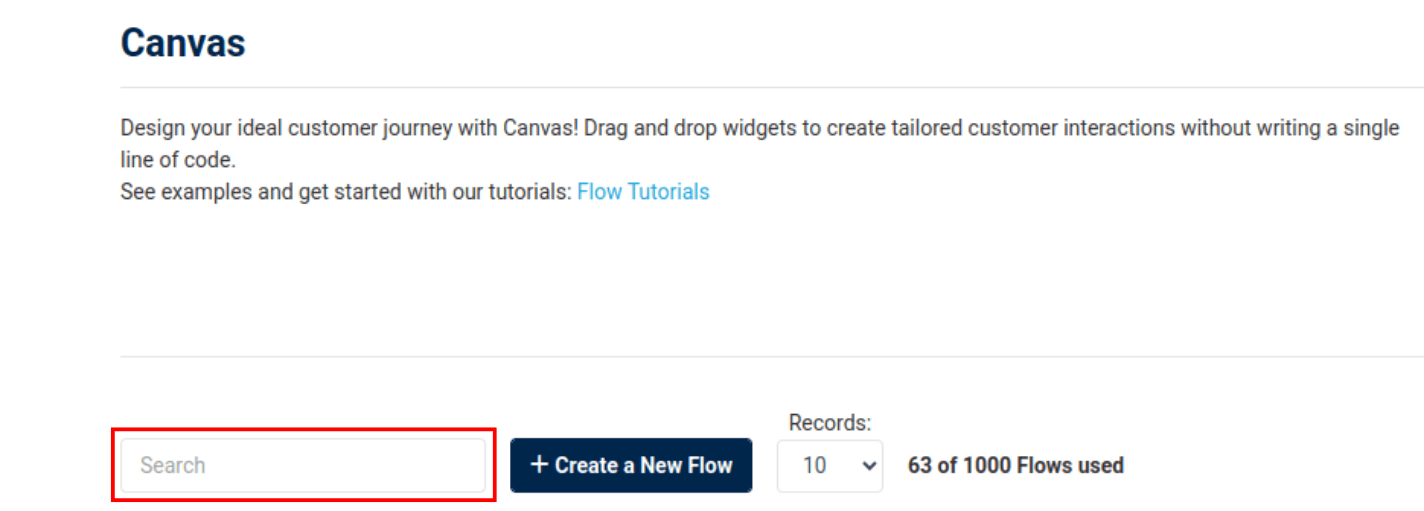
image of flow builder search bar


If you need to search for your Flow use the search bar.

Click the edit button.


image of edit button location

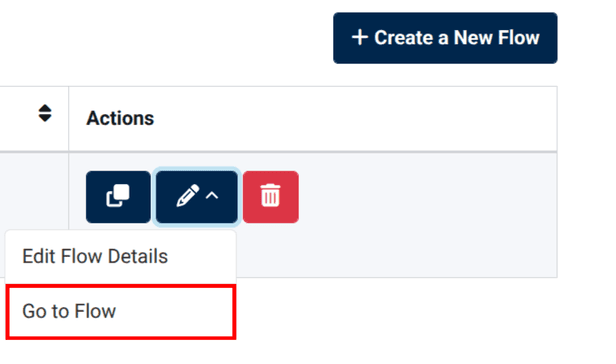
image of edit button options


Select "Go to Flow".

Before a Flow can be published make sure there are no warnings.


image of flow builder toolbar with no warning surrounded in a red box


If you have warnings then you will need to fix those, if there are no warnings then you can click "Publish."


image of flow builder toolbar with publish button surrounded by a red box

information icon
Current Environment Limitations:
In the Development and Staging Environments, only HTTP Request and Subflow triggers can be executed. Support for additional trigger types in these environments is coming soon.

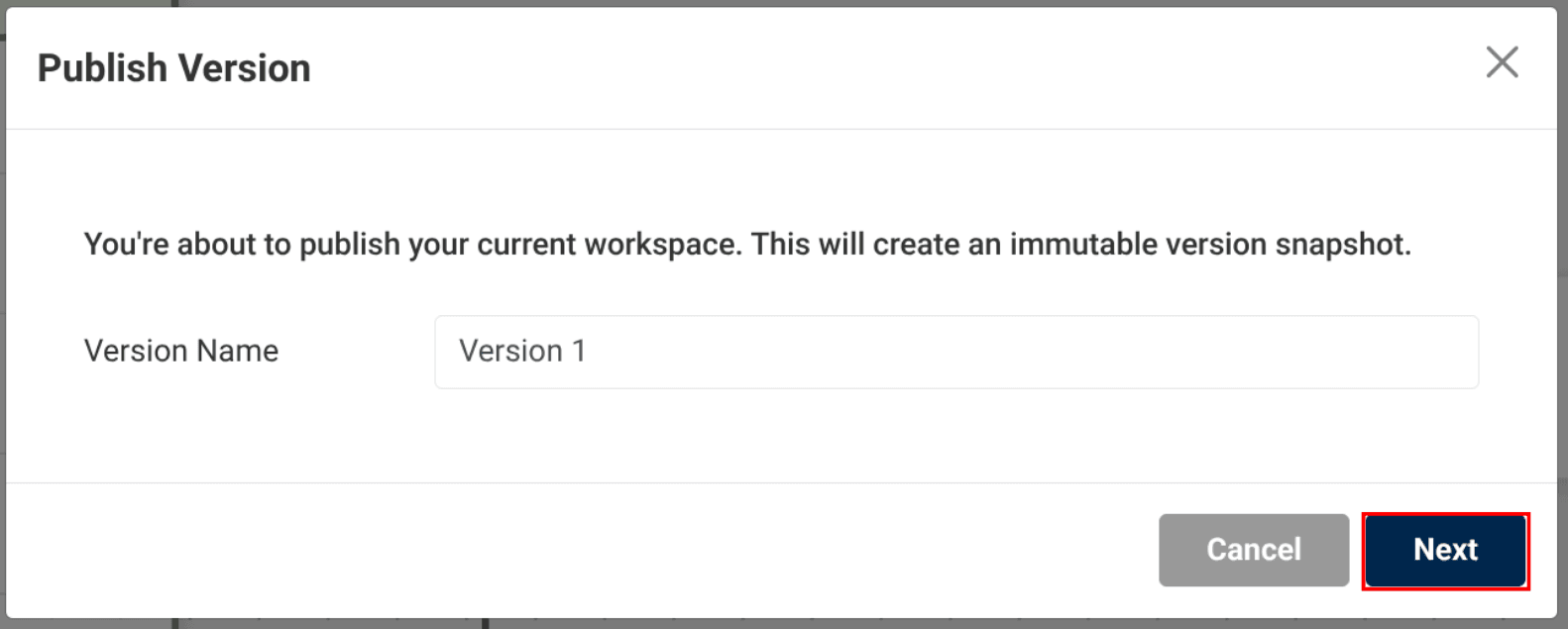
Image of naming and publishing a flow


Name the flow version and click “Next”


If you are publishing a flow that does not use the HTTP Request or Subflow trigger, then click “Publish”

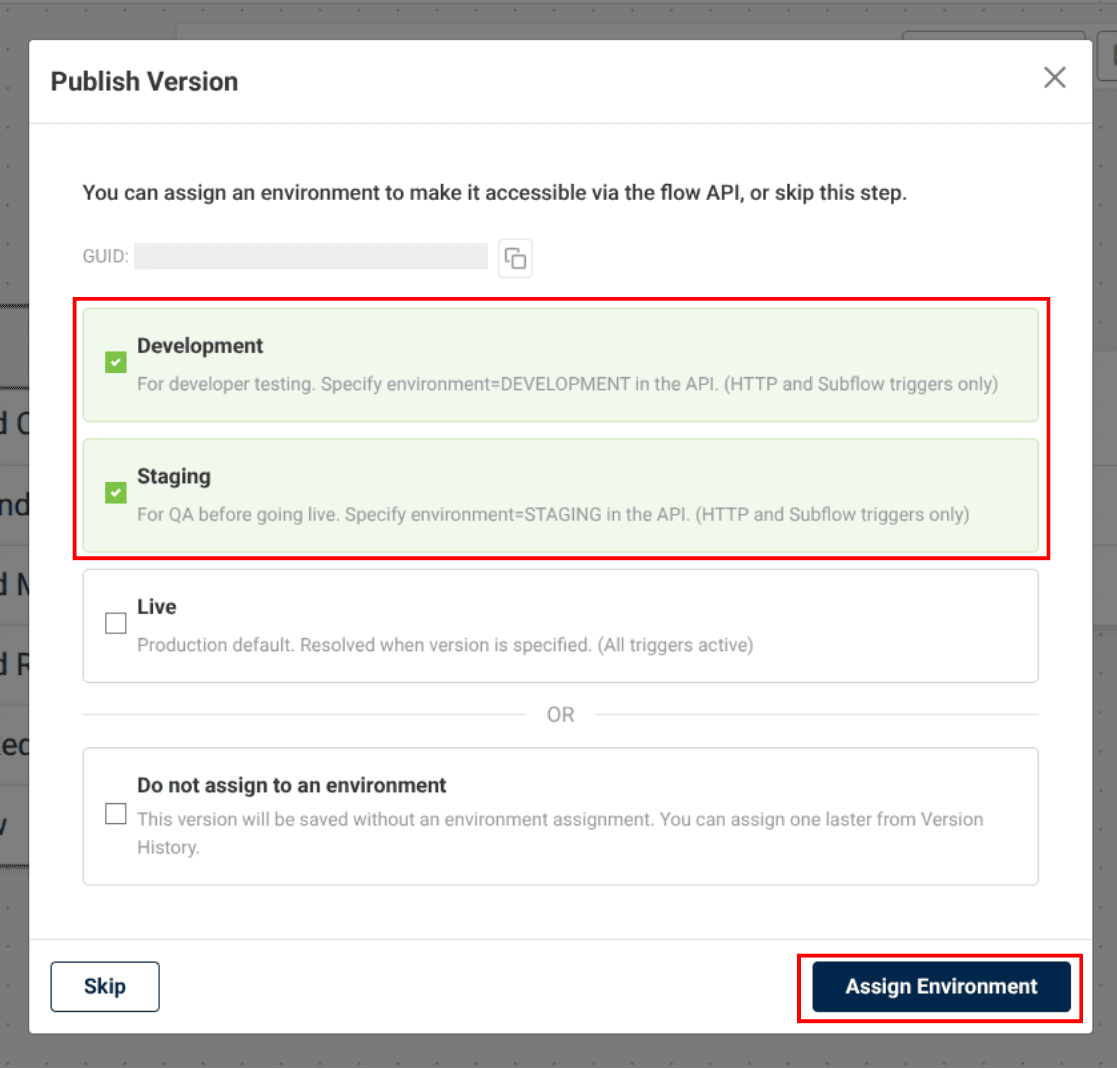
Image assigning flow environments


Next, select the environment(s) you would like to assign the version to. Your options include:

  • Development: Recomended for developer testing. Specify environment=DEVELOPMENT in the API. (HTTP and Subflow triggers only)
  • Staging: Recomended for QA before going live. Specify environment=DEVELOPMENT in the API. (HTTP and Subflow triggers only)
  • Live: Production default. Resolved when version is specified (All triggers active).

Once complete, click “Assign Environment”.

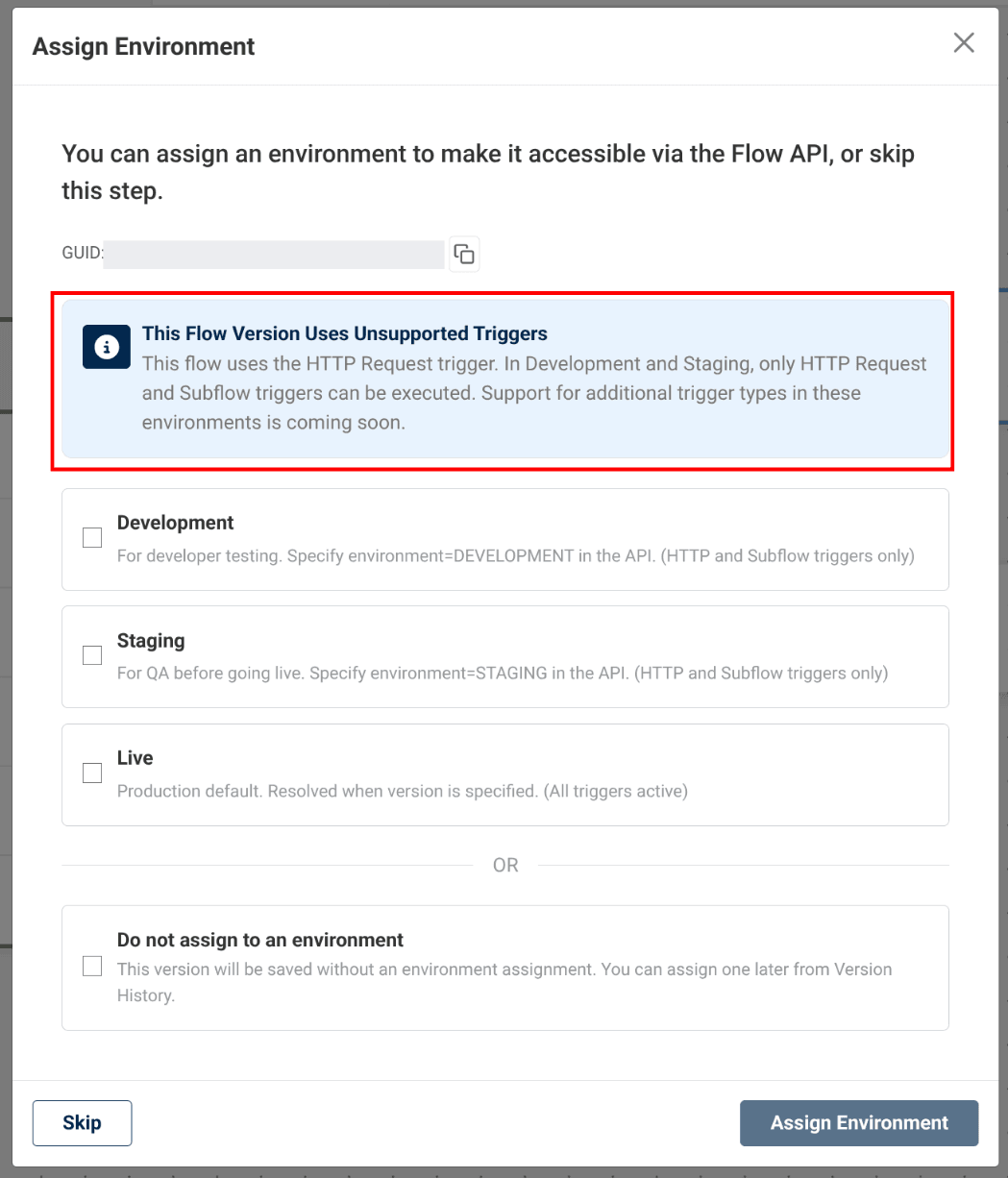
environment assignment warning if you assign to a flow with unsupported triggers


Flows connected to any trigger other than HTTP Request or Subflow will not execute in the Development or Staging environments.


If you assign an environment to a flow with an unsupported trigger, you will see a warning letting you know the trigger type is not yet supported.

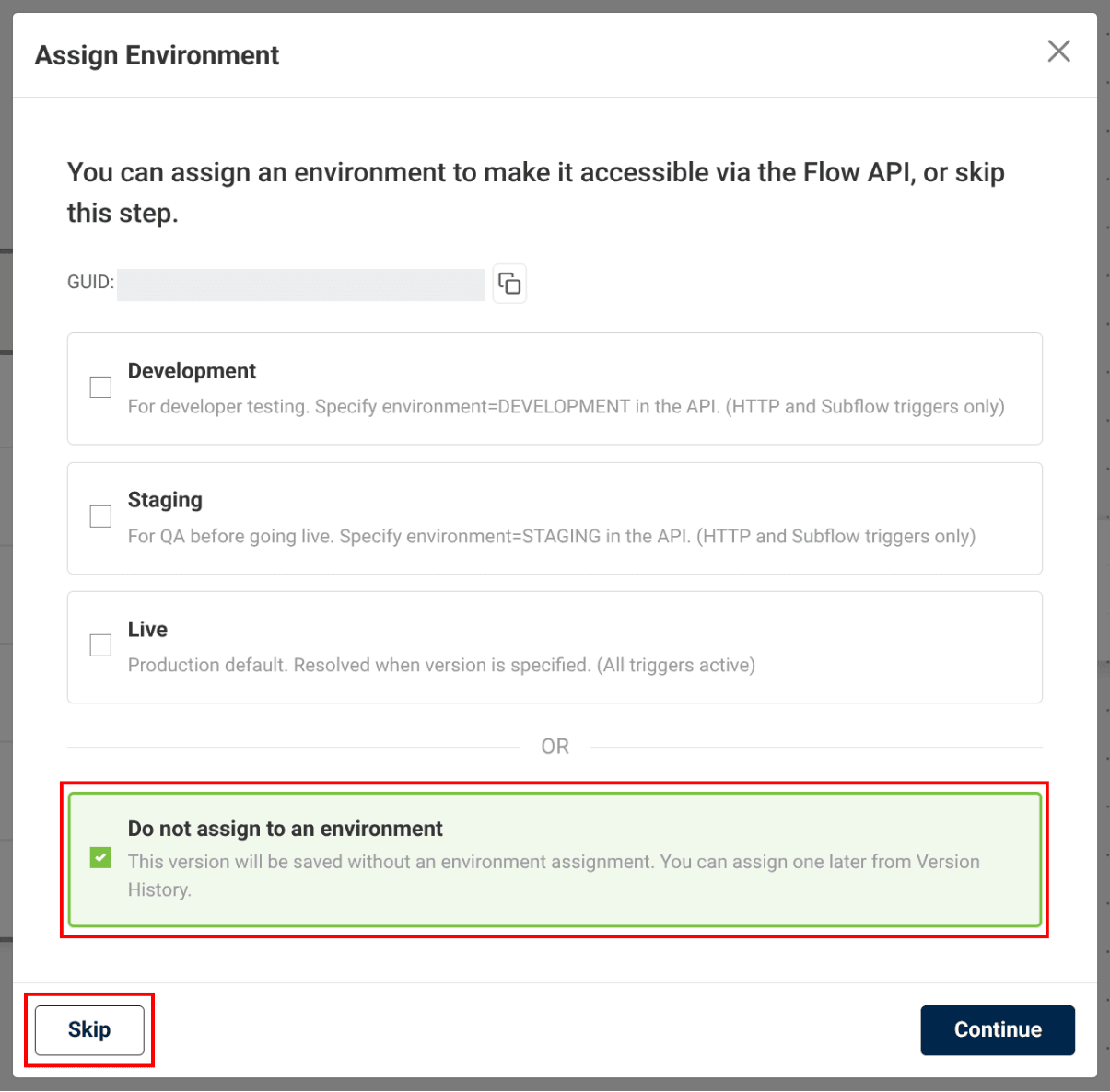
do not assign an evironment or skip option


If you do not want to assign an Environment to the Version, then select “Do not assign to an environment” or click “Skip.”

information icon
Note on Account Version Limits:
Your account is limited to 25 versions across all Flows, and you will not be able to publish a new version if you have reached this limit. If you require more versions, please submit a Support Ticket to request an increase in your limit.

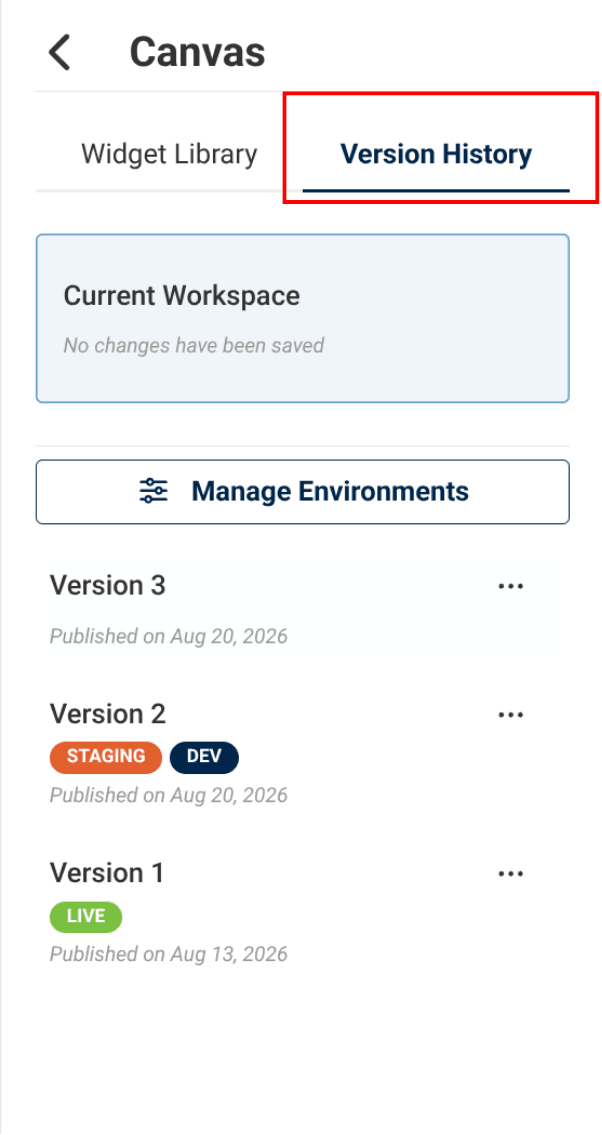
version history tab


Versions and Environments can be managed in the Version History tab.

To learn more, refer to the Manage Your Flow Versions tutorial.

Thats it for this tutorial!


Click on the links below to view more Canvas tutorials:


General Flow Tutorials


For step-by-step guidance on configuring widgets across Voice, Messaging, RCS, Capture, Controls, and Tools, check out our Widget Tutorials