Learning Hub / Tutorials / Voxtelesys / Managing Flow Versions FAQs

Tutorials: Managing Flow Versions

Learn how to manage your Flow versions in missio™ Canvas.

Required access: Voxtelesys Portal


Managing Version History is easy from the Voxtelesys Portal. Every time you publish a new version of your Flow, we automatically "take a backup" of the previous version. That way, if you break something, you can quickly get back to your previous version!

Under Version History, you can also manage flow environments. Currently, only flow versions that originate from an HTTP Request trigger and/or Subflow trigger can be executed in the Staging and Development environments. The Live environment is supported by all flow triggers.


Please Note: your account is limited to 25 versions across all Flows, and you will not be able to publish a new version if you have reached this limit. If you require more versions, please submit a Support Ticket to request an increase in your limit.


*Disclaimer: You will need to have Voice API enabled on your account to do this you will need to open a ticket with support.


Last Updated: 8/20/2026
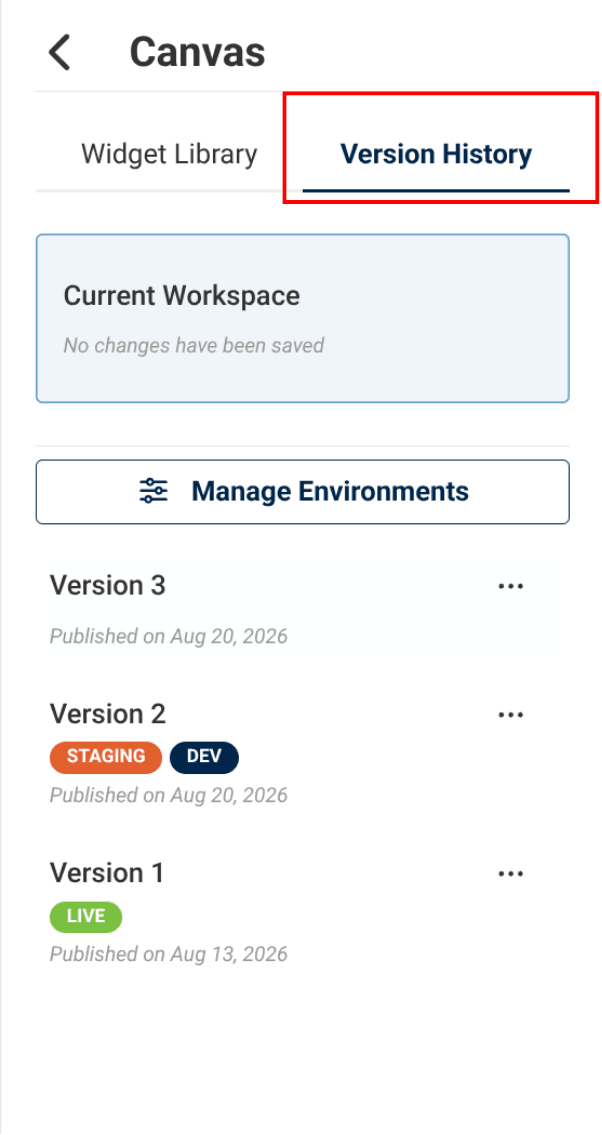
version history tab


To find Version History, go to the flow and click on the Version History tab (located next to the widget library tab).


Version History is where you can view, edit, and delete flow versions. This is also where flow environments are managed.

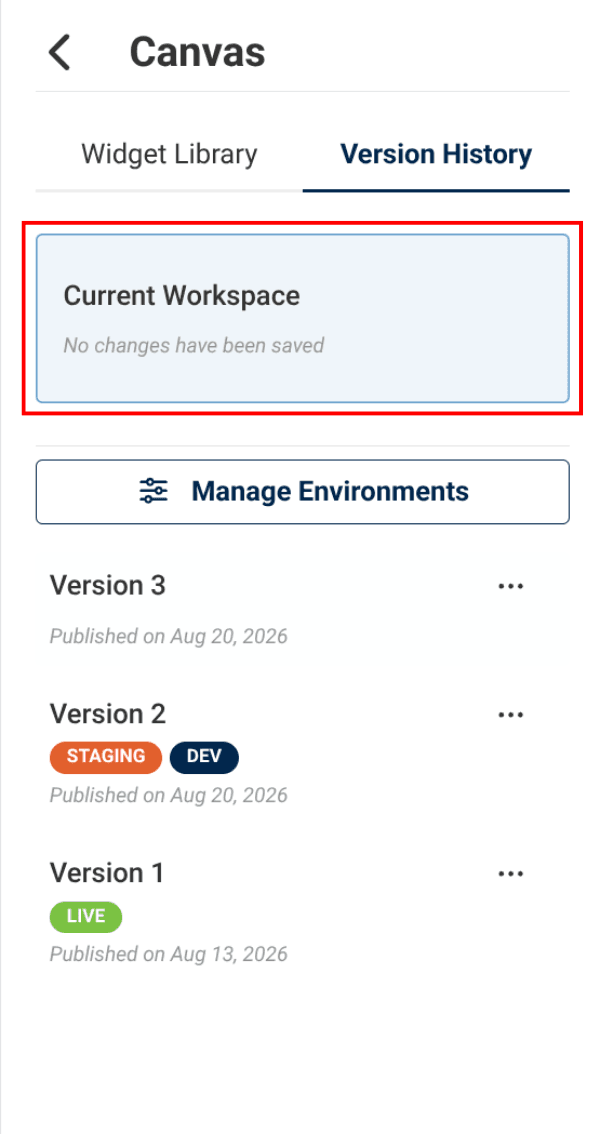
version history tab with red box around the current workspace


The current workspace is the version of the flow you're currently editing. This is where you make changes.


When you're done, publish to save the version, then assign it to an environment or copy the GUID.

information icon
Returning to the Current Workspace:
Loading a version into the current workspace will completely overwrite the contents of the current workspace. If you want to return to the current workspace without loading a previous version, simply click “Current Workspace” in the Version History and you will be able to resume editing your Flow.

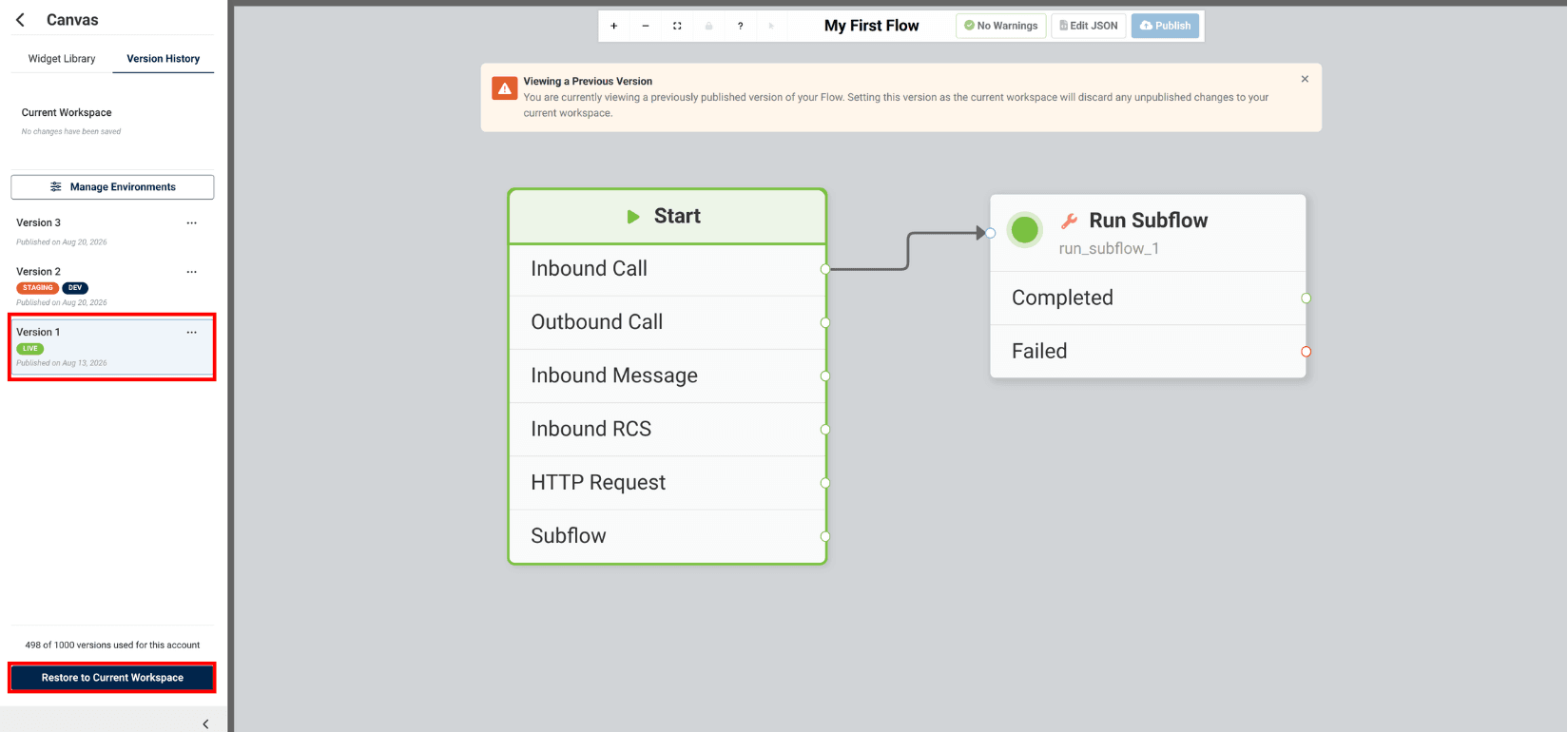
To view a previous version, you can click on the version and it will be displayed in a read-only state. Versions cannot be edited. If you wish to make changes to a version, you can load it into the current workspace by pressing “Restore to Current Workspace."


image of restoring a previous version
information icon
Current Environment Limitations:
In the Development and Staging Environments, only HTTP Request and Subflow triggers can be executed. Support for additional trigger types in these environments is coming soon.

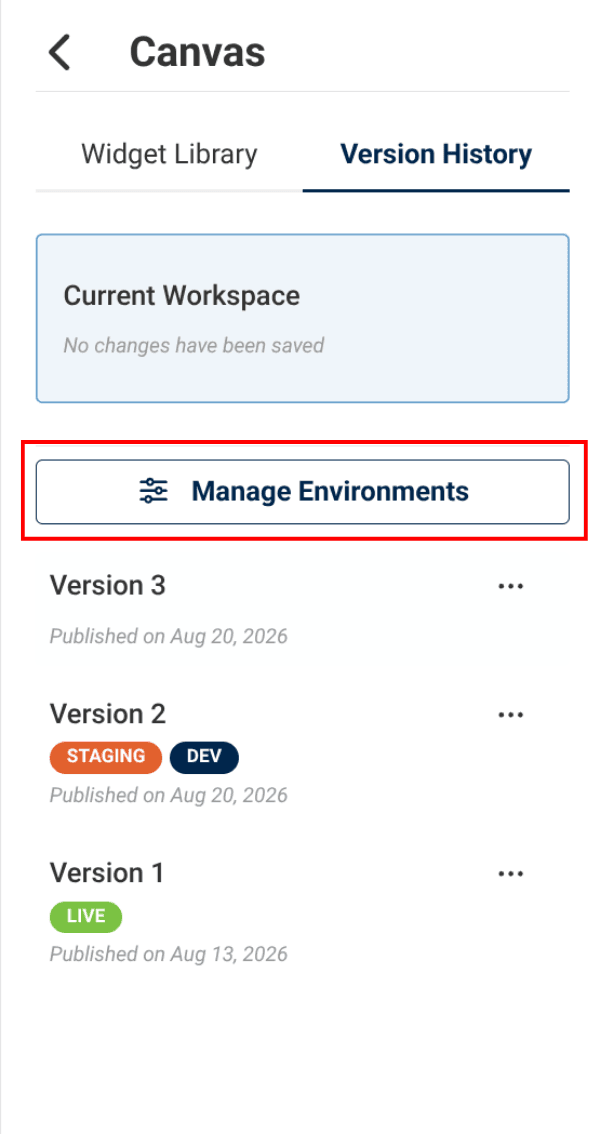
manage environments button


Click “Manage Environments” to bulk edit environment assignment.

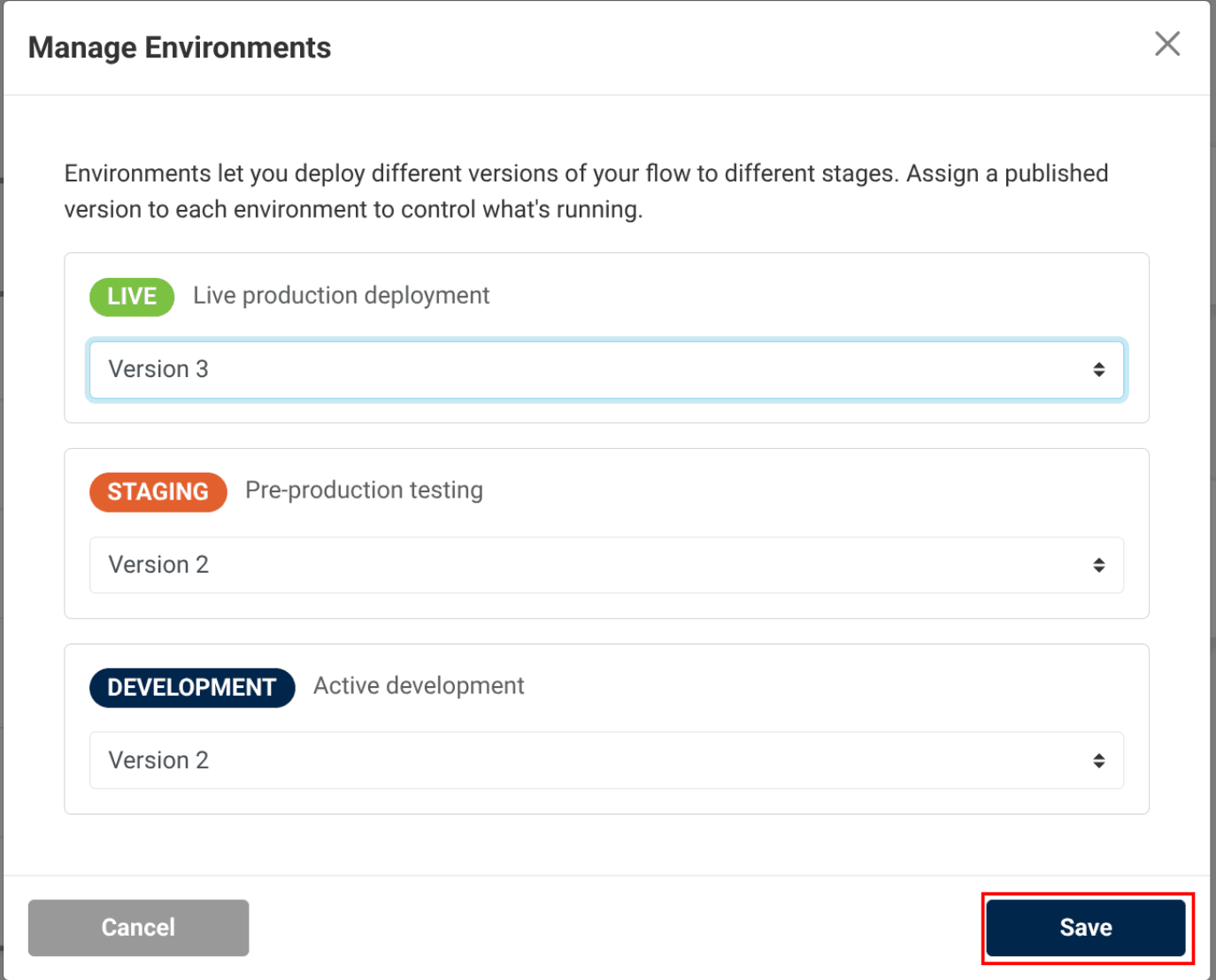
manage environments dropdowns


From here, you can assign published versions to the desired environment with the dropdowns.

editing an environments from set environments


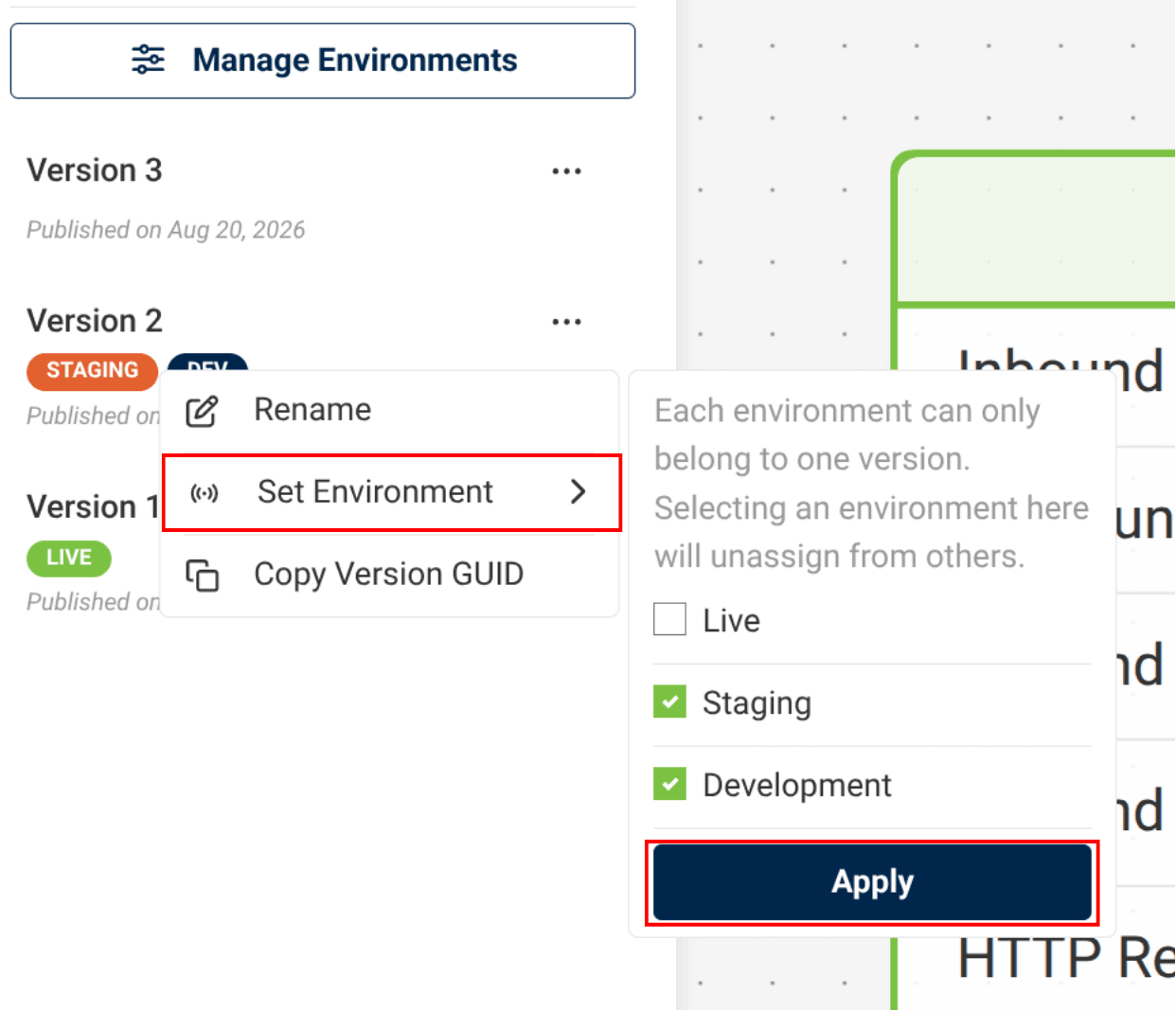
Edit environment assignment from a specific version by selecting the three dots next to a version and going to “Set Environment”.


Each environment can only belong to one version. Selecting an environment will unassign it from others.


To Save Changes click "Apply".

information icon
Deleting a Version Assigned to an Environment:
A version cannot be deleted while it is assigned to an environment. To unassign an environment select the three dots, go to "Set Environment," and uncheck the environment.

Image of version history tab with red box surrounding the delete button


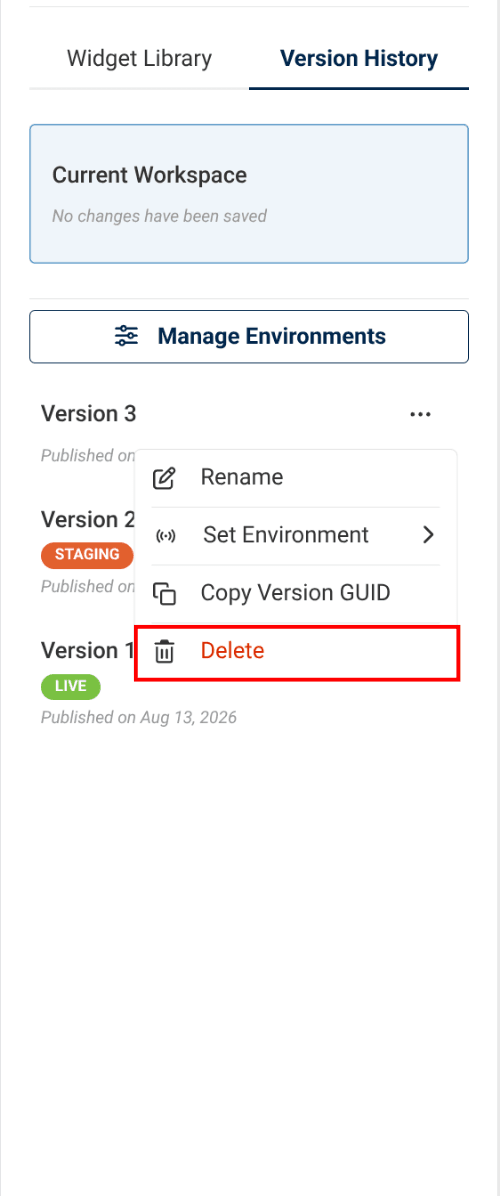
Sometimes, when you are working on a Flow you might make many small changes and publish a lot of versions, to clean this up you can delete any versions from your history.


To delete a version without any environments assigned to it, click the three dots and select “Delete”

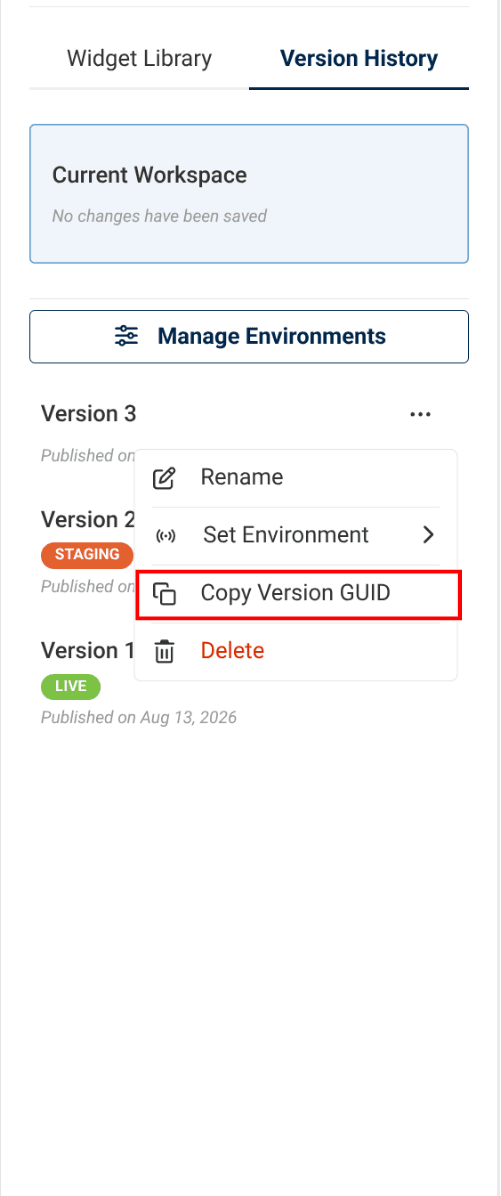
location to copy the version GUID


Copy a Version's GUID selecting the three dots next to a version and and clicking "Copy Version GUID".

Now that you know how to manage your version history you can continue to master missio™ Canvas!


Click on the links below to view more Canvas tutorials:


General Flow Tutorials


For step-by-step guidance on configuring widgets across Voice, Messaging, RCS, Capture, Controls, and Tools, check out our Widget Tutorials

Learning Hub / Tutorials / Voxtelesys / Managing Flow Versions FAQs