Tutorials: Configuring RCS Message Content
Required Access: Voxtelesys Portal
Disclaimer: RCS requires a verified sender. Open a support ticket to get the registration process started.
Before You Begin
Before configuring RCS message content, drag an RCS-supported widget onto the canvas. For configuration steps, refer to the tutorial for the widget you selected.
Last Updated: 11/20/2026
After configuring the settings for the selected widget, configure the message content.
Select one of the following content types for the message:
| Content Type | Description |
| Plain Text | A text-only message with no rich media. |
| Rich Card | A single message combining media, a title, description, and action buttons in a structured layout. |
| Carousel | A set of scrollable rich cards sent in a single message. |
| Files | A publicly accessible file, such as an image, video, or PDF, sent to the recipient. |
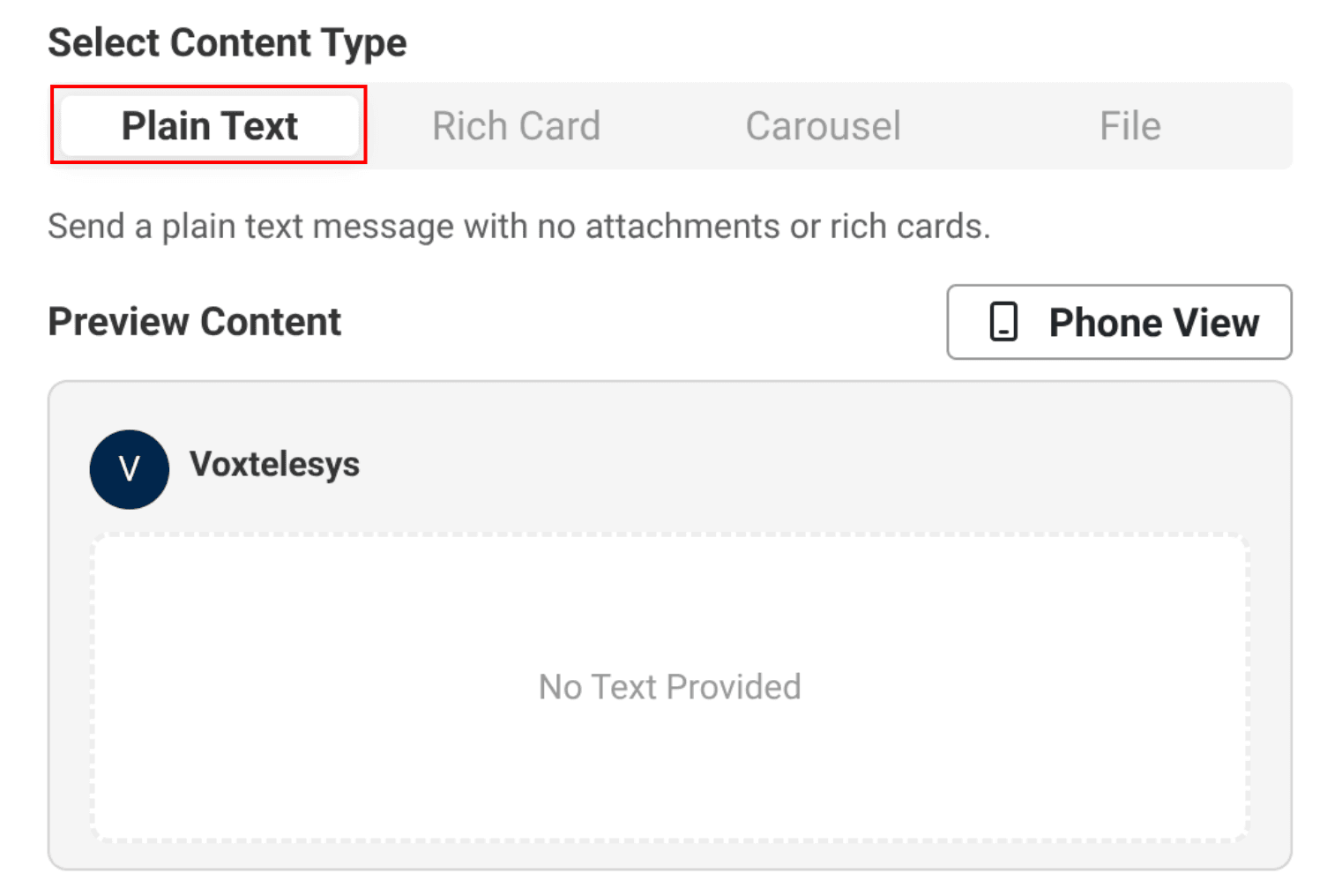
Select Plain Text as your content type
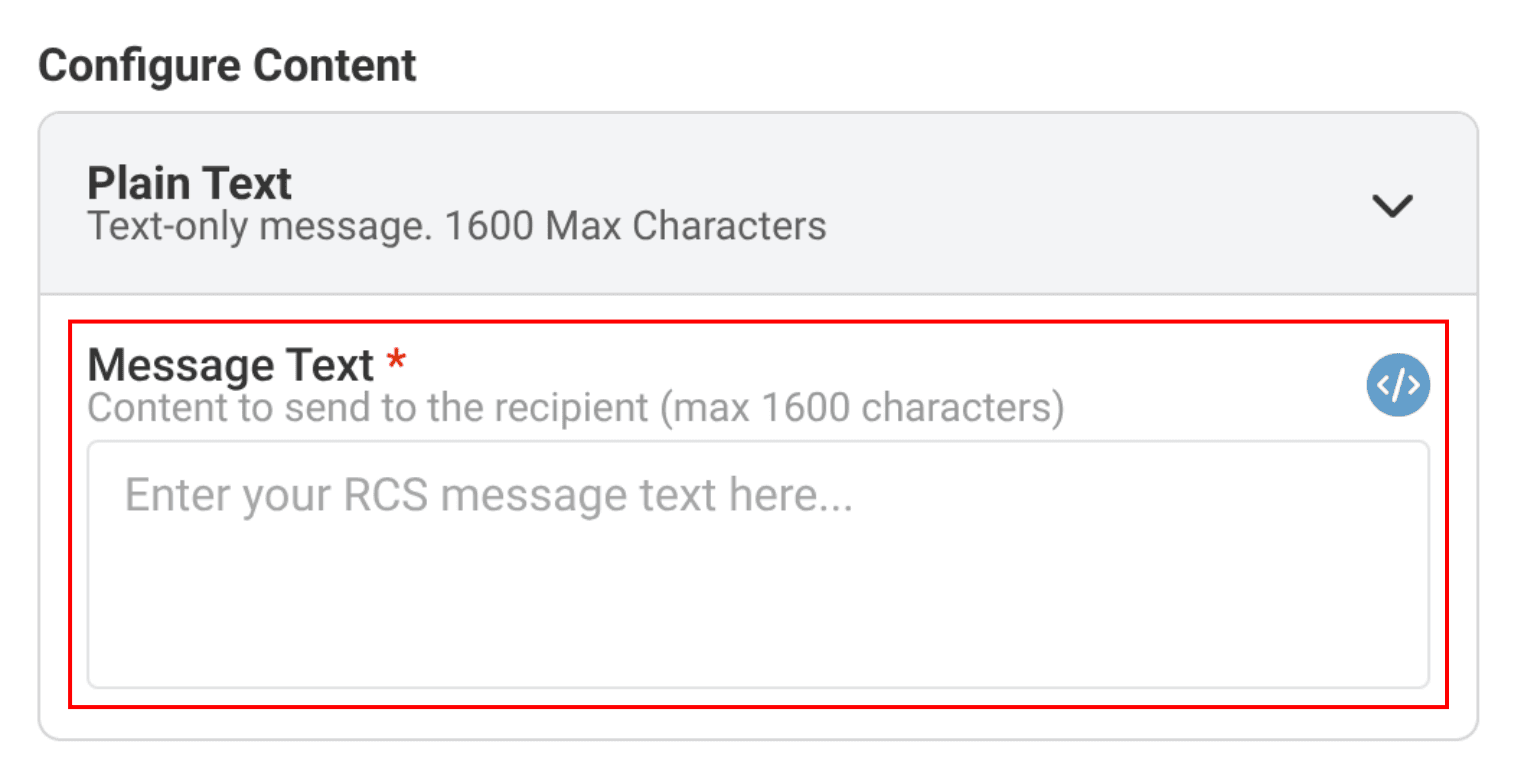
Enter the following under Configure Content:
Message Text
Enter the content to send to the recipient. There is a maximum of 1600 characters.
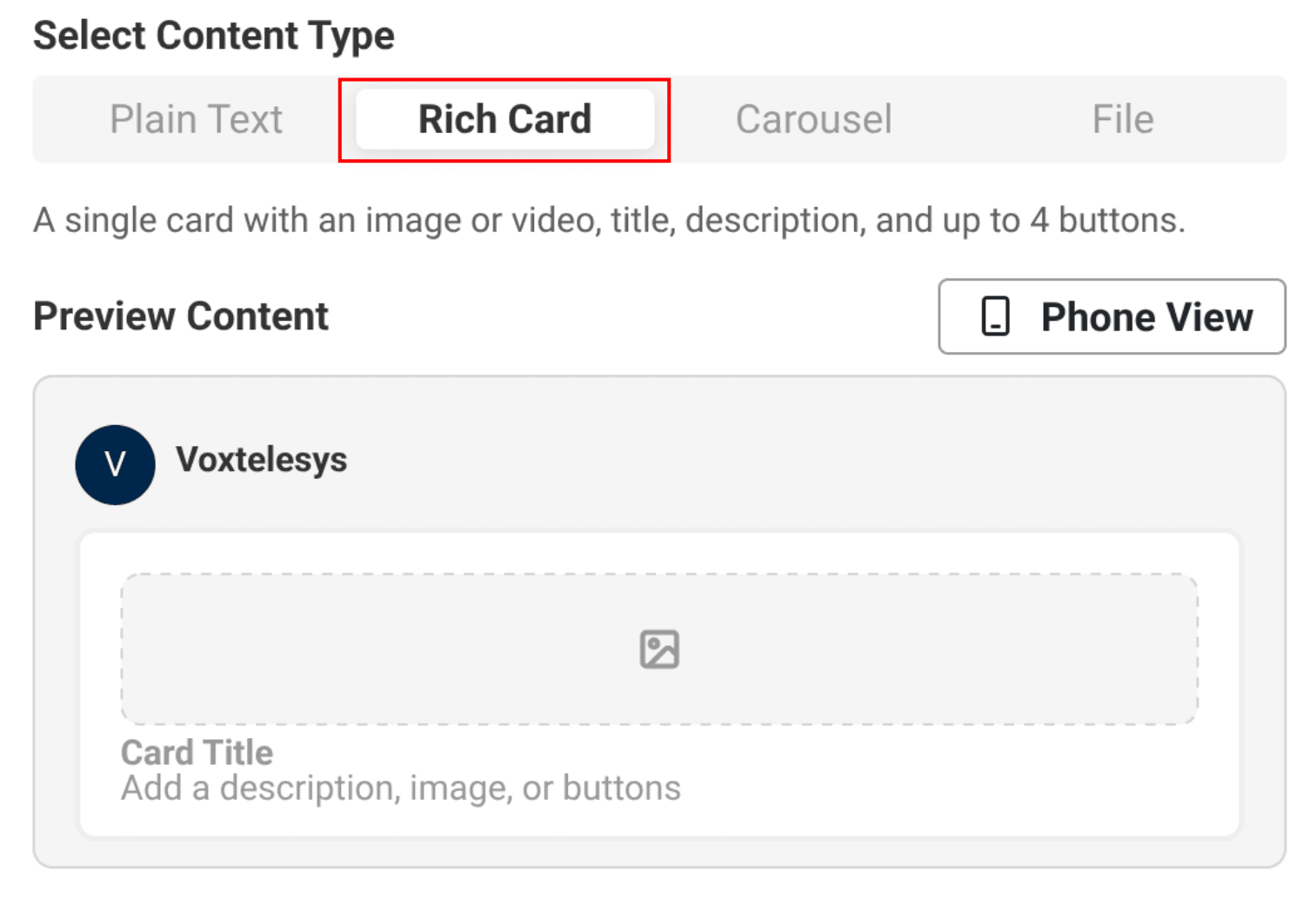
Select Rich Card as your content type.
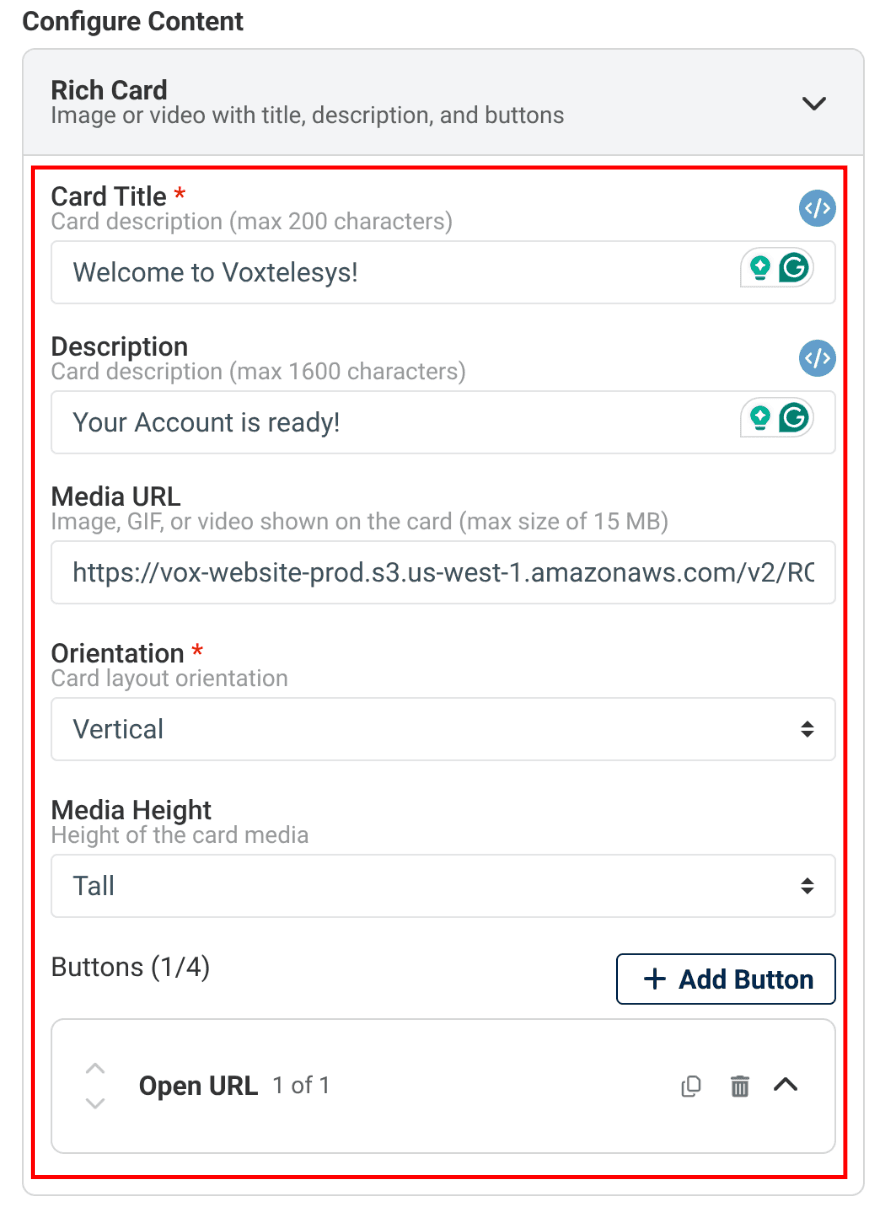
Enter the following under Configure Content:
Title
The title displayed on the rich card..
Description
Supporting text for the rich card.
Media URL
Enter a supported media URL. All media URLs must be publicly accessible.
Orientation
Select Vertical or Horizontal from the dropdown.
Media Height (If Vertical Orientation is Selected)
Select Short, Medium, or Tall.
Alignment (If Horizontal Orientation is Selected)
Select Left or Right alignment.
Buttons
Add up to four primary buttons. Available actions include: Dial Phone, Open URL, Show Location, Request Location, and Create Calendar Event.
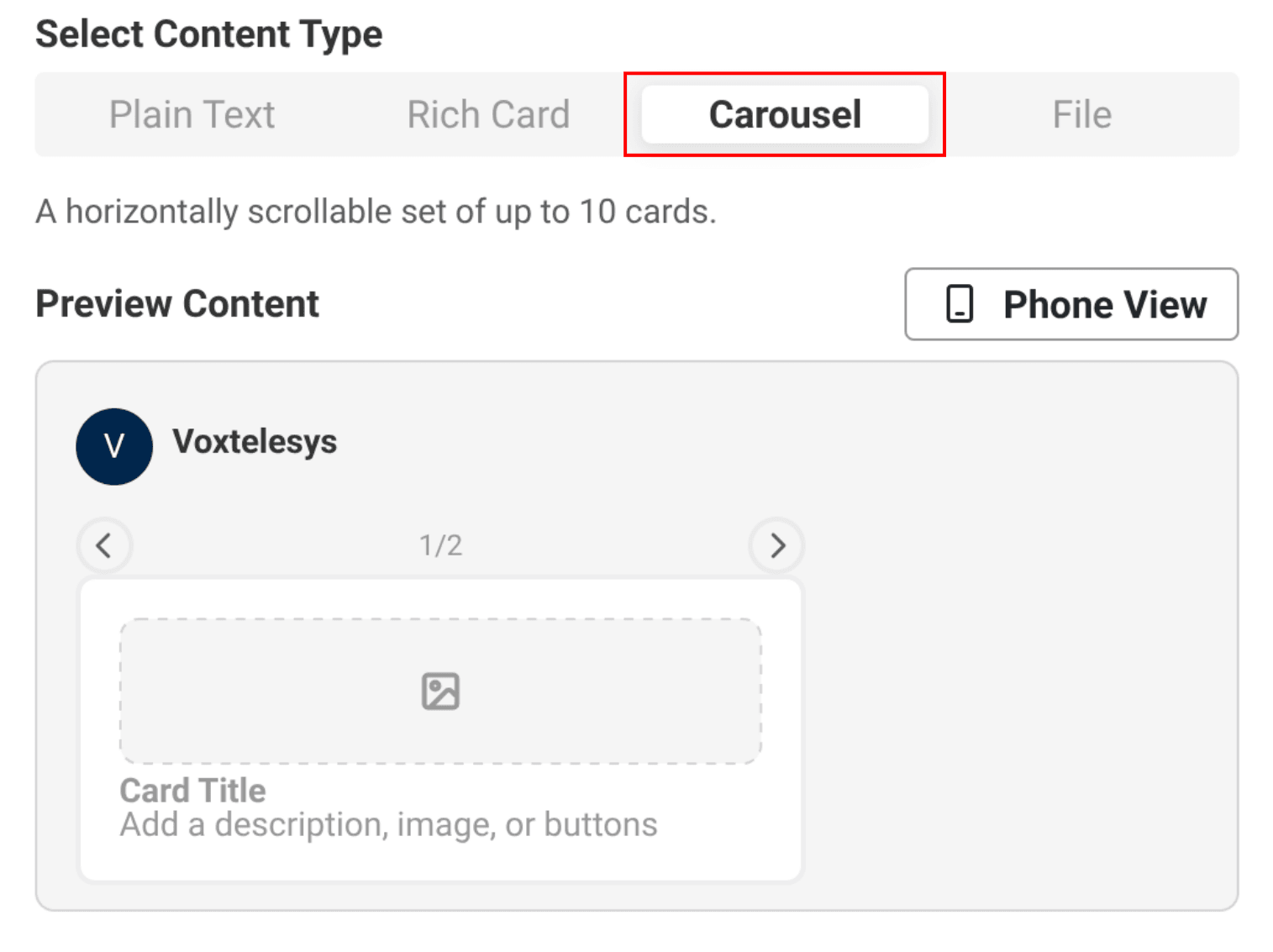
Select Carousel as your content type.

The combined file size for all cards in a carousel cannot exceed 15 MB.
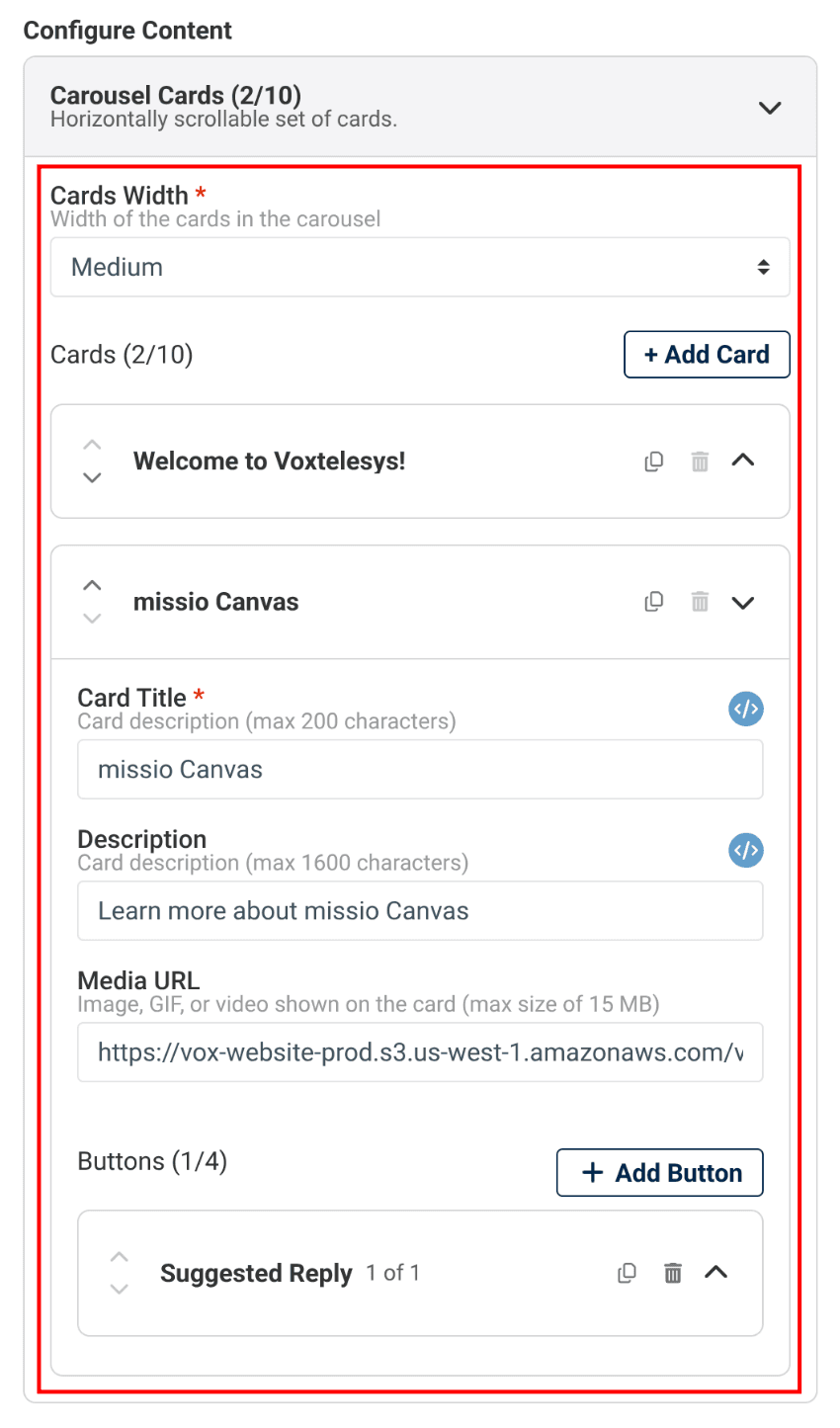
Enter the following under Configure Content:
Cards Width
Controls how wide each card appears when scrolling. Choose either medium or small.
Card Title
The title displayed on the rich card.
Description
Supporting text for the rich card.
Media URL
Enter a supported media URL.
Buttons
Add up to four primary buttons per card. Available actions: Dial Phone, Open URL, Show Location, Request Location, and Create Calendar Event.
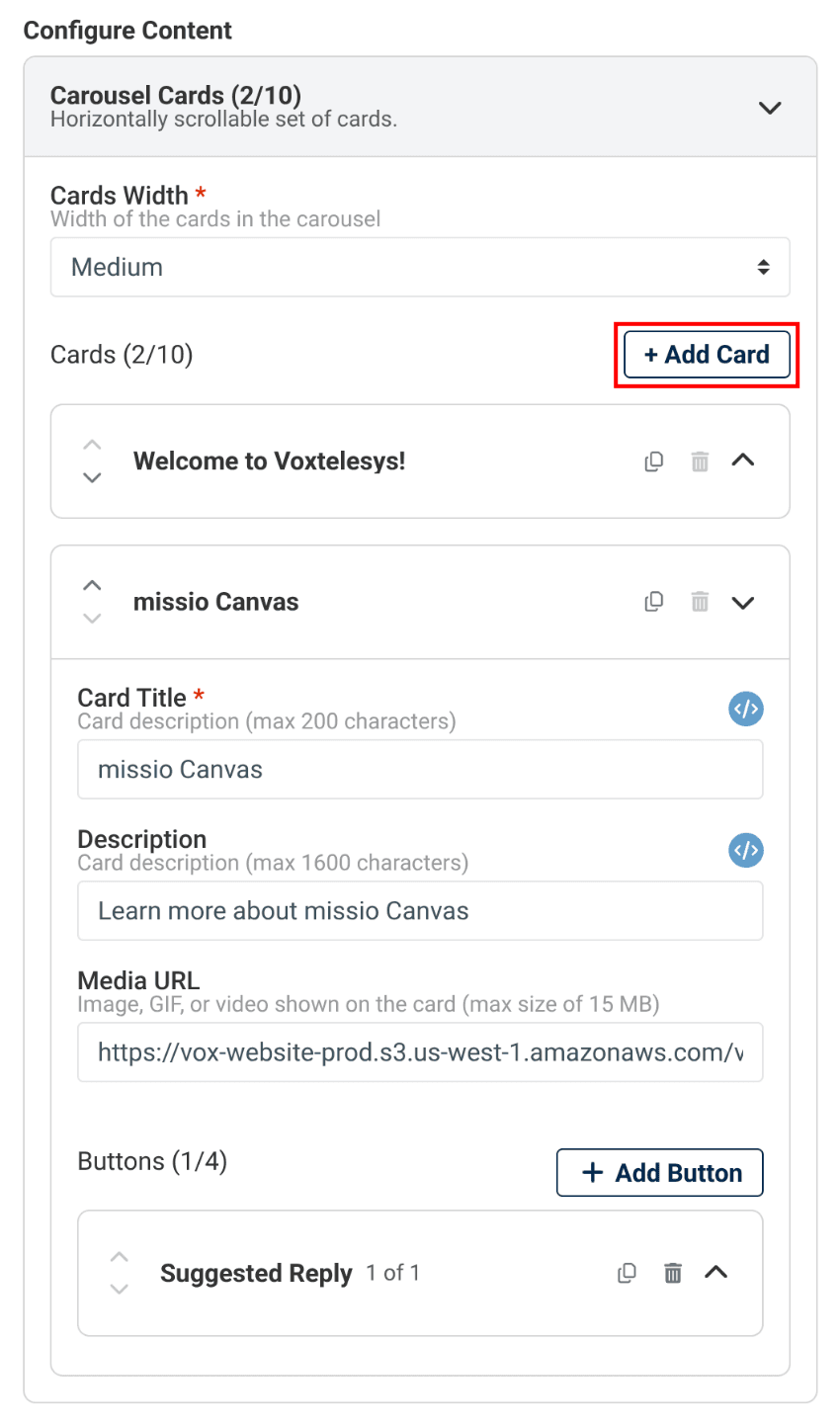
To add another card to the carousel, click “+Add Card.” Up to 10 cards can be added per carousel
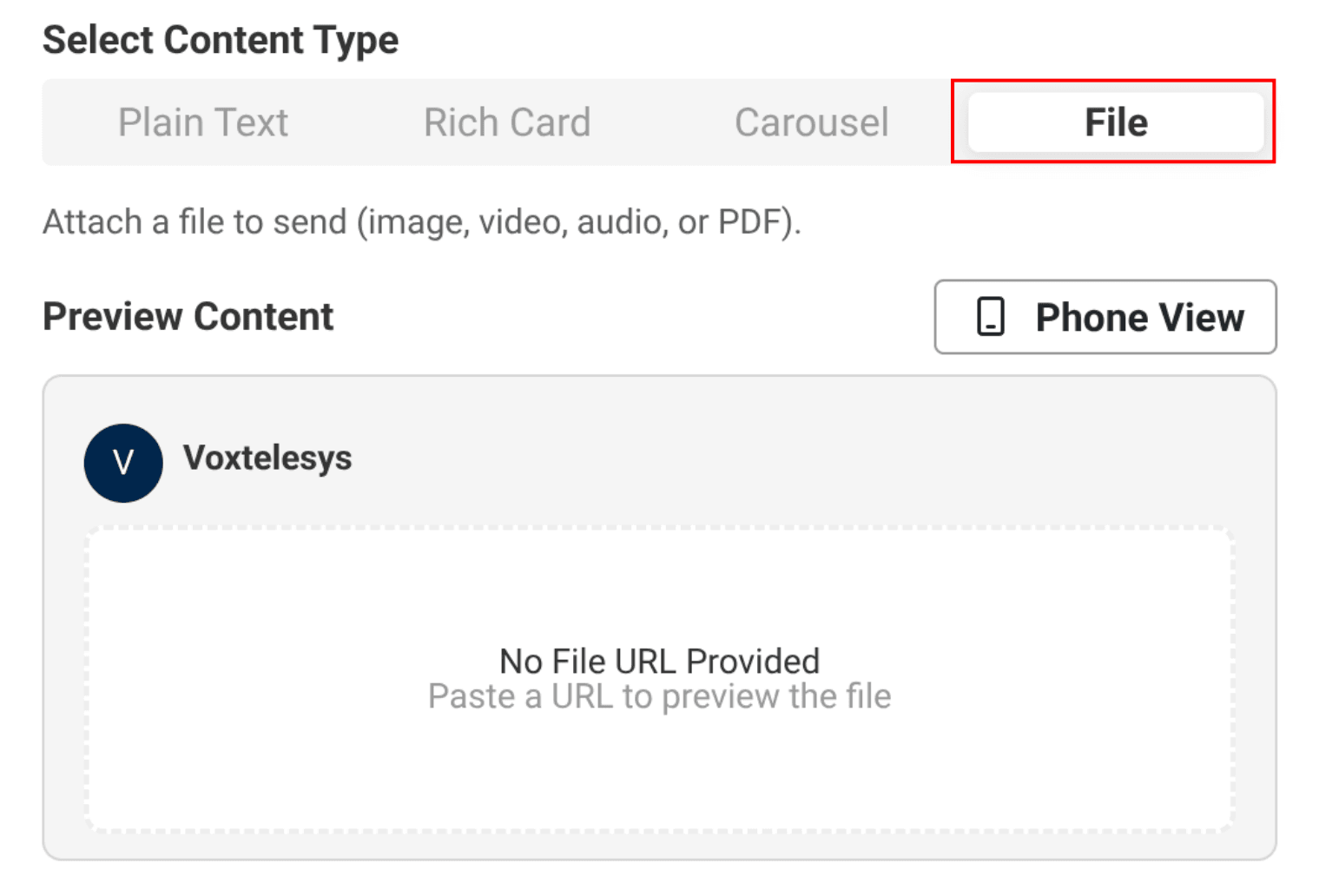
To send a file, select File as your content type.
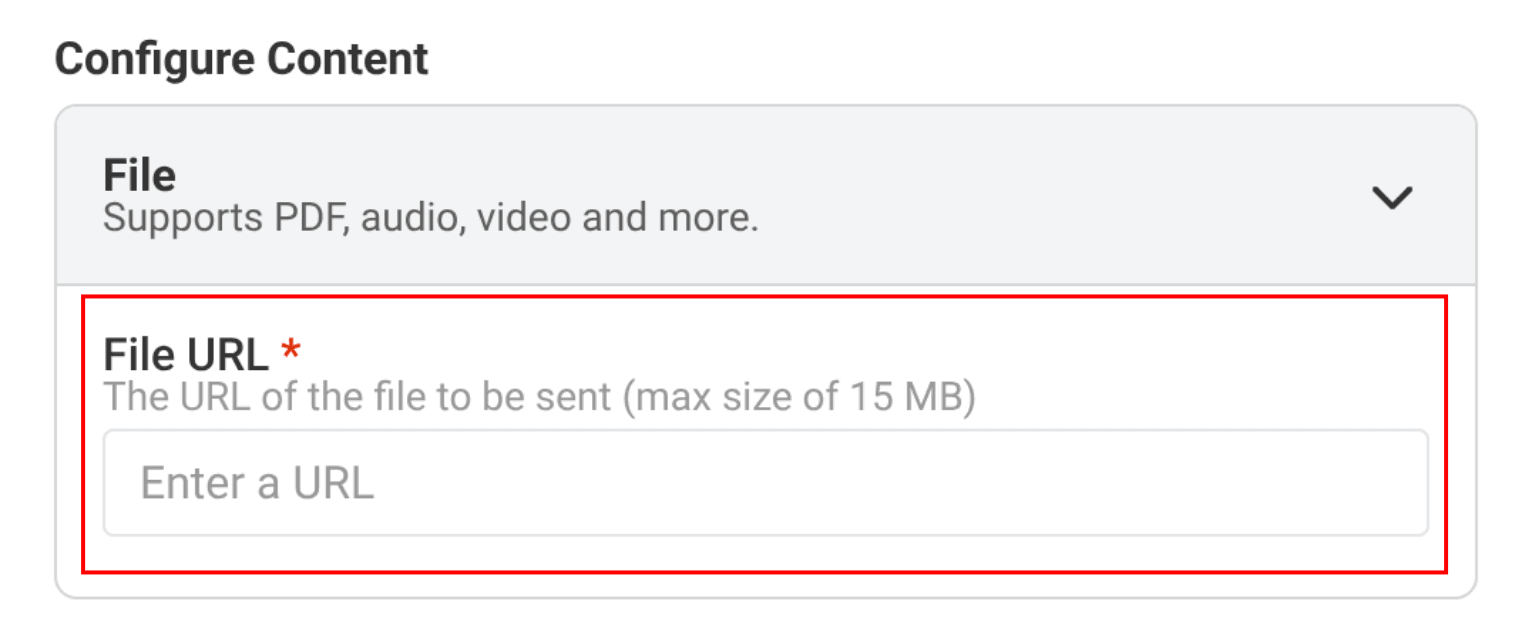
Enter the following under Configure Content:
File URL
Enter a publicly accessible direct link. The file type is detected automatically from the URL. Maxiumum file size is 15 MB
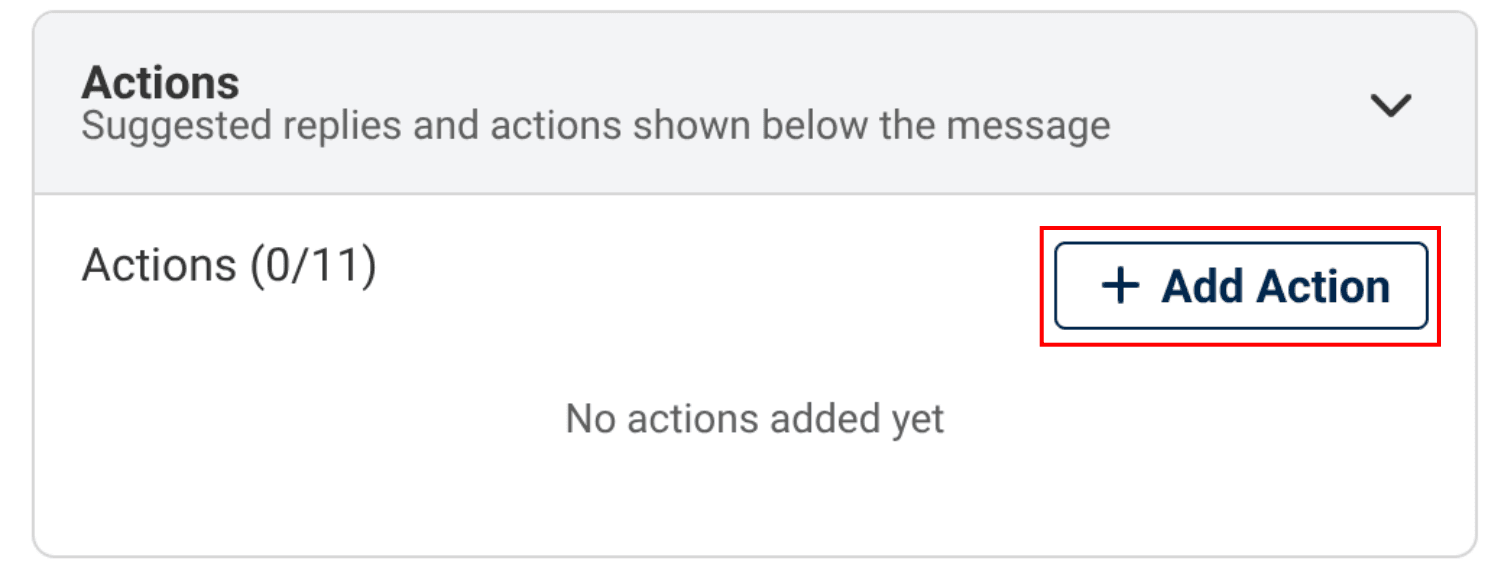
To add an action, click “+Add Action”
Select the action type and configure the settings. Refer to Configuring RCS Actions for more information.
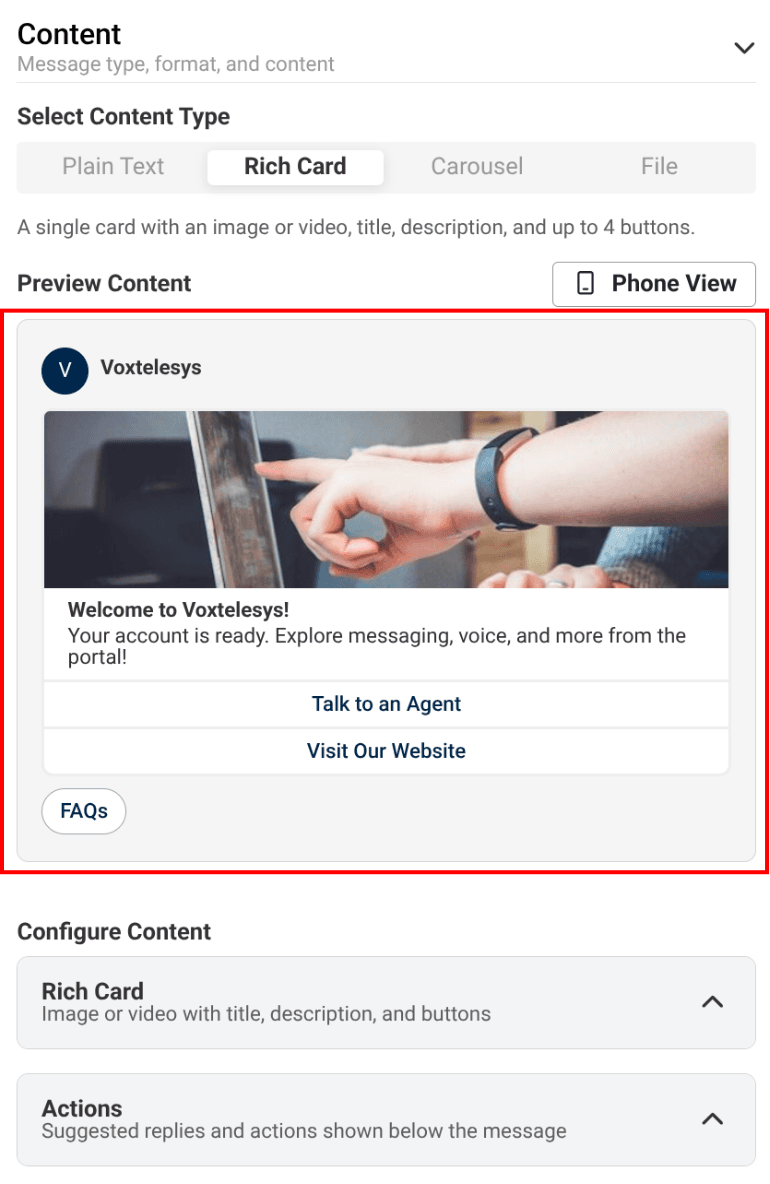
The preview content panel displays RCS content as it's built.
Message appearance may vary depending on the recipient's device and OS. The Phone View in Canvas provides a general representation of your message, but may not reflect the exact rendering on every device.
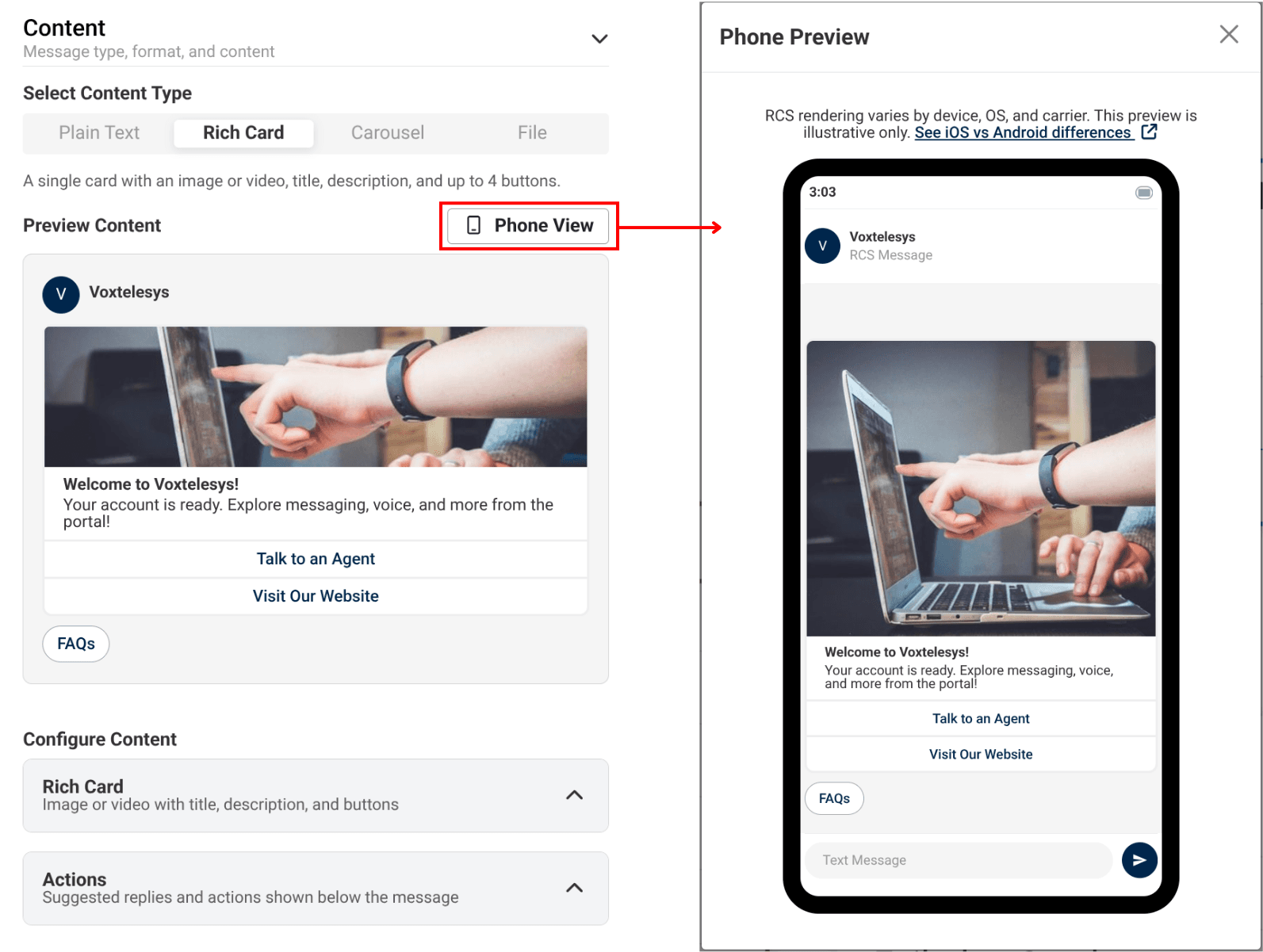
Any change made under Configure Content and Actions appears here instantly, so edits are visible right away. For a closer approximation of how content will appear on a device, select Phone View to open a live phone preview.
Once the RCS message content is configured, return to the widget tutorial to finish configuring your widget.


