Required Access: Voxtelesys Portal
Disclaimer: You must register to become a verified sender before using RCS. Please open a Support Ticket to intiate the process.
Last Updated: 1/23/2026
What is RCS?
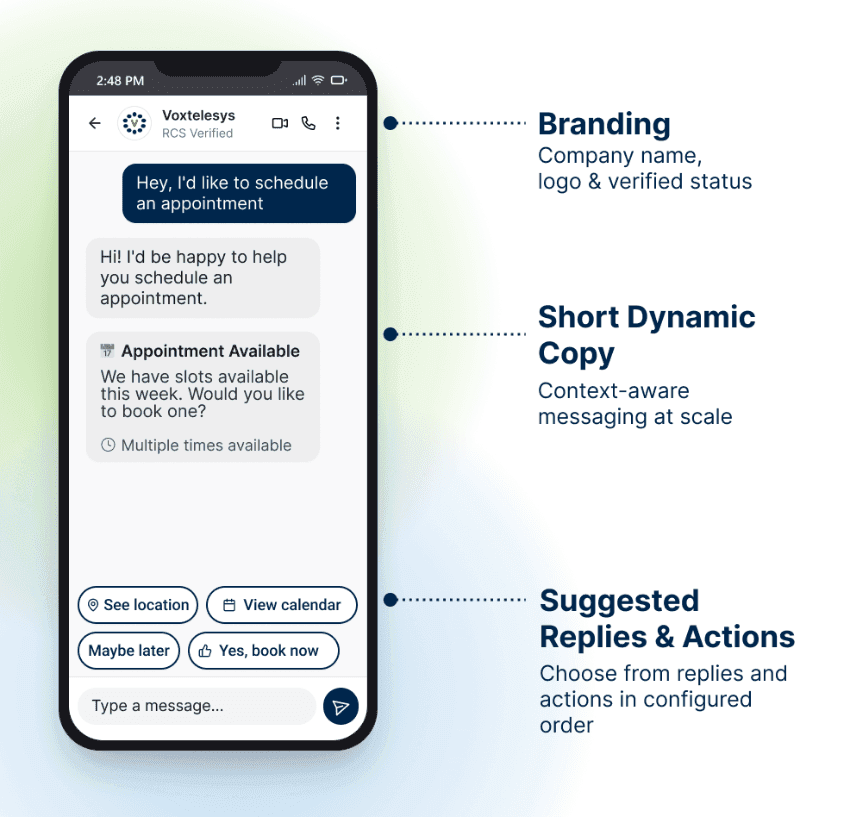
RCS (Rich Communication Services) is the next generation of mobile messaging, designed to replace traditional SMS with a richer, more interactive experience. Delivered primarily through the Google Messages app, RCS transforms the simple text field into a dynamic, engaging communication channel. RCS messages are sent from a verified brand profile (not just a phone number), featuring your logo, brand name, and colors. This builds instant trust and significantly reduces the risk of phishing or fraud. Additionally, RCS messages can include actions/suggested replies, which are interactive buttons displayed with an RCS message. Up to 11 actions are allowed per RCS message.

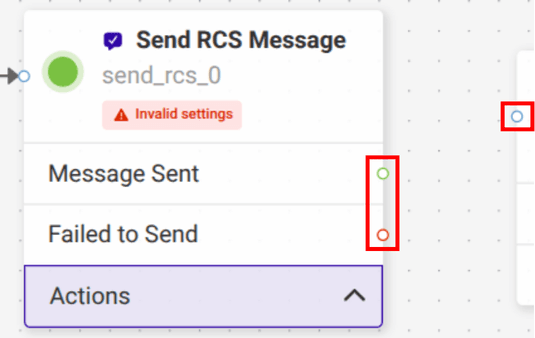
The Send RCS Message widget triggers an outbound RCS message and immediately advances the flow. It is designed for one-way notifications where user input is not required for the next logic step. Use the Message Sent transition to proceed with the sequence or Failed to Send to trigger a fallback (such as SMS or an error log).
Use Cases:
Send RCS Message Widget vs. Send RCS & Wait for Reply Widget
The table below highlights the key differences between the Send RCS Message Widget and the Send RCS & Wait for Reply Widget. For guidance on building interactive, response-driven RCS messages, see the Send RCS & Wait for Reply tutorial.
Feature |
Send RCS Message |
Send RCS & Wait |
| Primary Goal | Notification/Alerting | Engagement/Collection |
| Flow Impact | Instantaneous | Paused/Stateful |
| Best For | High Volume Updates | Decision trees & Support |
| Fallback Logic | Delivery failure only | Delivery Failure and Non-response |

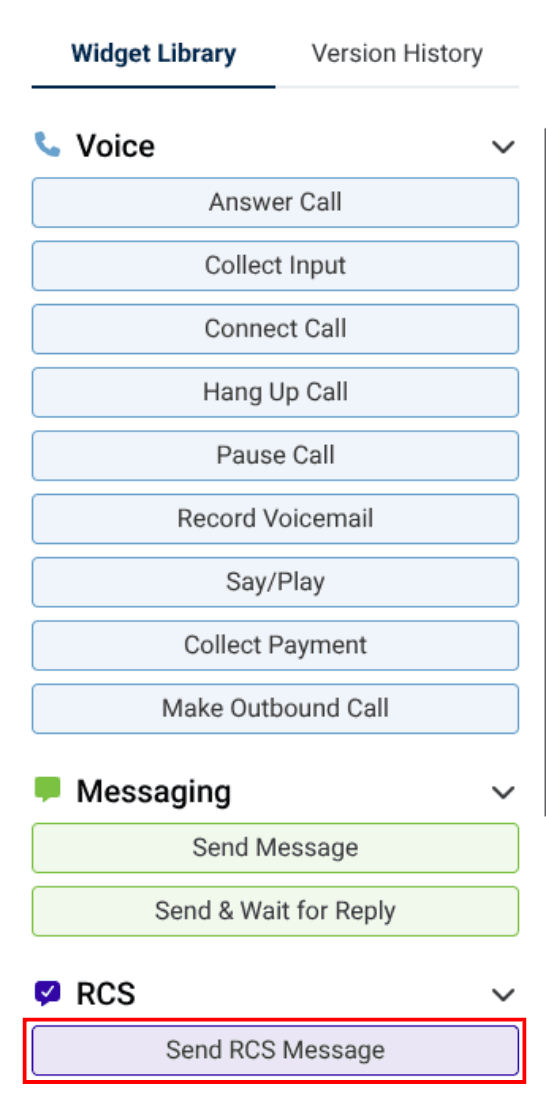
To use the widget simply click and drag it into the flow.

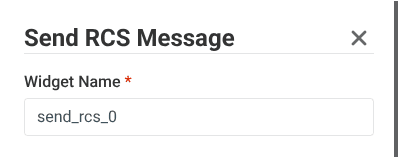
Note that naming the widget can help identify it with other tools later on.
It is case sensitive, and does not accept spaces or dashes.

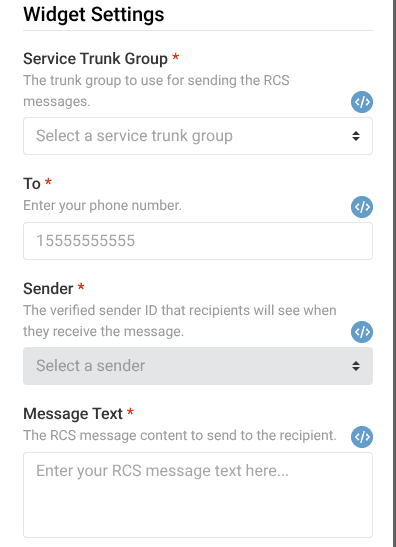
The Send RCS Message widget has the following configuration abilities under Widget Settings:
The trunk group to use for sending the RCS messages.
The recipient's phone number.
The verified sender ID that Recipients will see when they receive the message.
The RCS message content to send to the recipient.
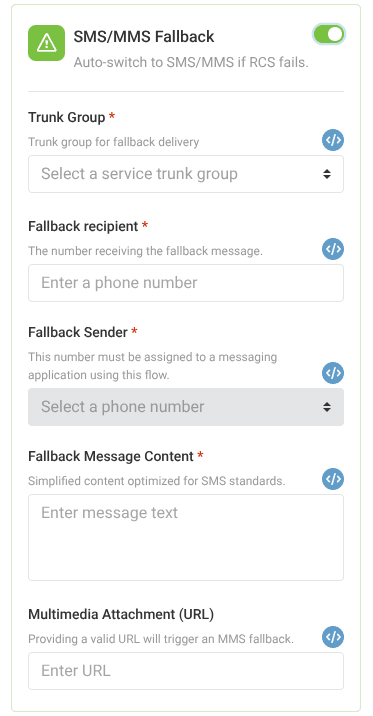
The Send RCS Message Widget has the following SMS/MMS Fallback capabilities under Advanced Settings:
Auto-switch to SMS/MMS if RCS fails.
Trunk group for fallback delivery.
The number receiving the fallback message.
Sender ID used for the fallback channel. This number must be assigned to a messaging application using this flow.
Simplified content optimized for SMS standards.
Optional, providing a valid URL will trigger an MMS fallback.

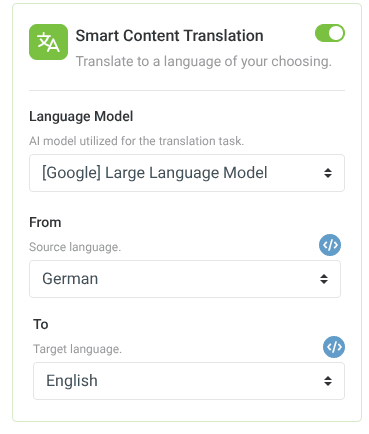
The Send RCS Message Widget has the following Smart Content Translation capabilities under Advanced Settings:
Translate the message text to another language. If this option is selected, choose the language model, source language, and destination language for the translation.
The AI model utilized for the translation task. Currently, we only support Google as a vendor. Text is billed in 100 character intervals and pricing is based on the model selected.
The language to translate text from. The input text should be typed in this language. Automatic language detection is only supported if the user chooses to use the NMT model.
The language to translate to.
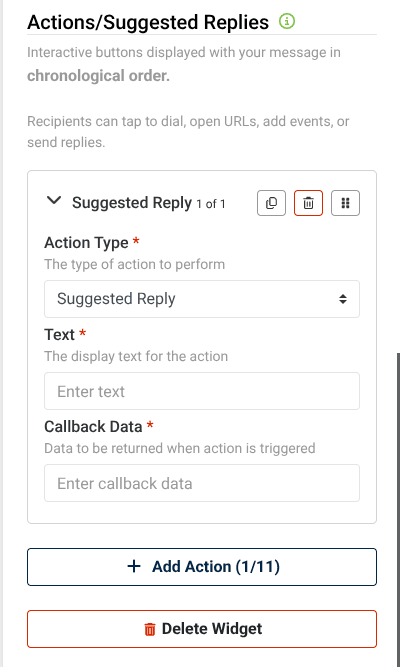
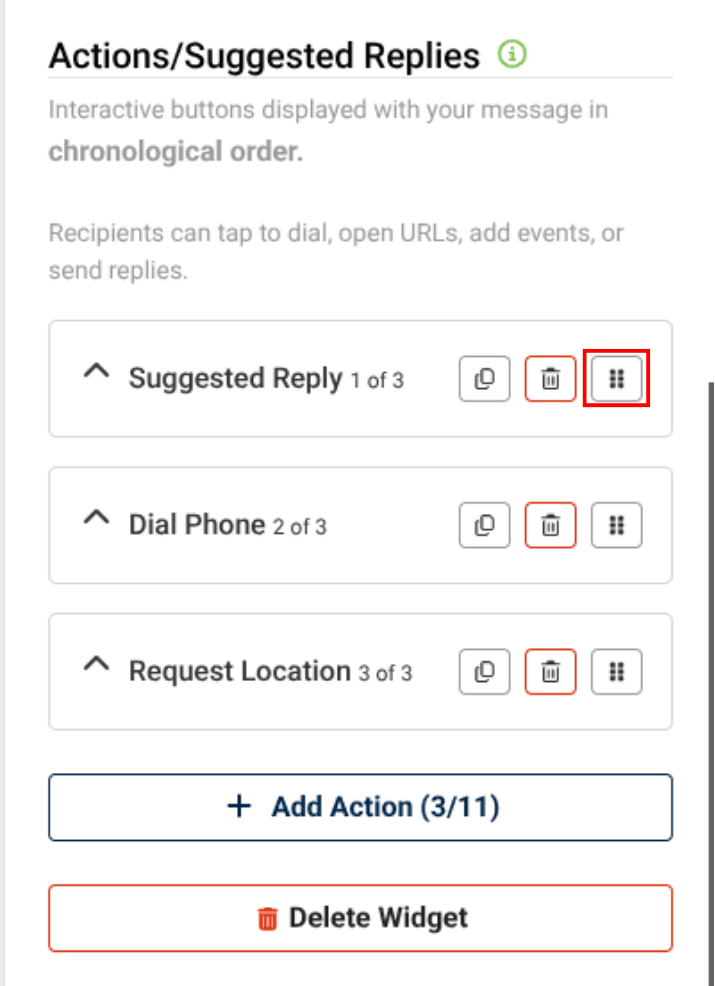
Actions/Suggested Replies are interactive buttons displayed with your RCS message. These buttons will appear in chronological order. Up to 11 Action Types can be added per RCS message.
For best practices, take a look at Google's Documentation.
Available Actions & Suggested Replies
Action Type |
Function |
| Suggested Reply | Sends a predefined reply that the user selects. |
| Open URL | Directs the user to a designated link. |
| Dial Phone | Directs the user to dial a phone number you specify. |
| Show Location | Displays a designated map location. |
| Request Location | Requests that a user share their current location. |
| Create Calendar Event | Creates a calendar event on the user’s device. |

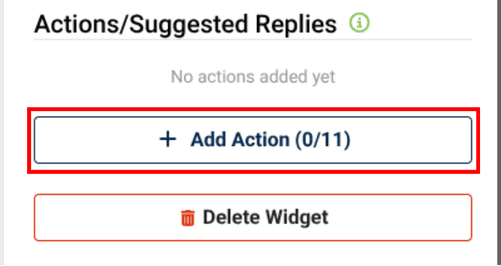
To add a new action, click "+Add Action."

Select the desired action from the "Action Type" drop-down and enter the required information.

The order of the actions can be changed by using the move button.

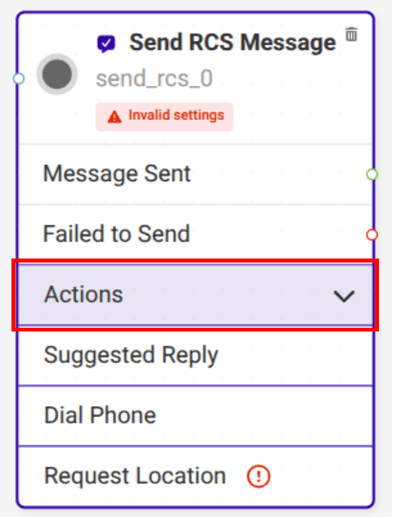
The added actions will appear in the Actions drop-down of the Send RCS Message widget.

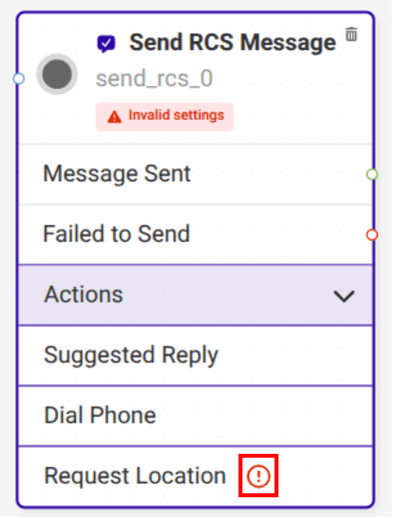
The red invalid settings symbol next to an action indicates that the action was not configured correctly. Return to the action to configure any missing information

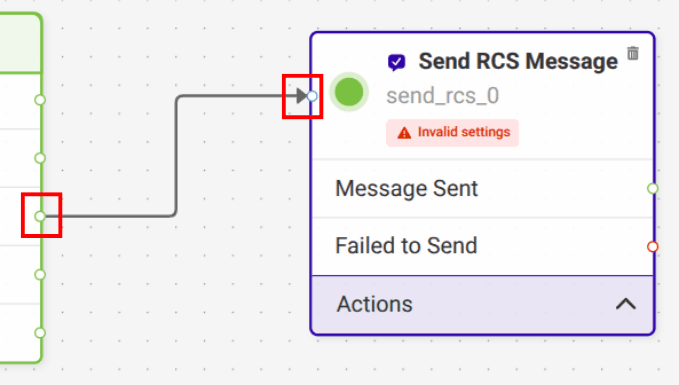
Now, you will connect the Send RCS Message Widget.

Adding the Send RCS Message Widget is completed!
To continue the flow, connect more Widgets to the opposite end of the Send RCS Message Widget.
Now connect more widgets! Click on the links below to view more tutorials:
Voice
Messaging
Tools
Control