Required Access: 3CX
Disclaimer: To upload knowledge bases 3CX requires an active, configured OpenAI account. For step-by-step setup instructions, please refer to the 3CX AI Agent Configuration Guide.
Table of Contents:
Last Updated: 7/24/2026
Required Access: 3CX
Disclaimer: To upload knowledge bases 3CX requires an active, configured OpenAI account. For step-by-step setup instructions, please refer to the 3CX AI Agent Configuration Guide.
Table of Contents:
Last Updated: 7/24/2026
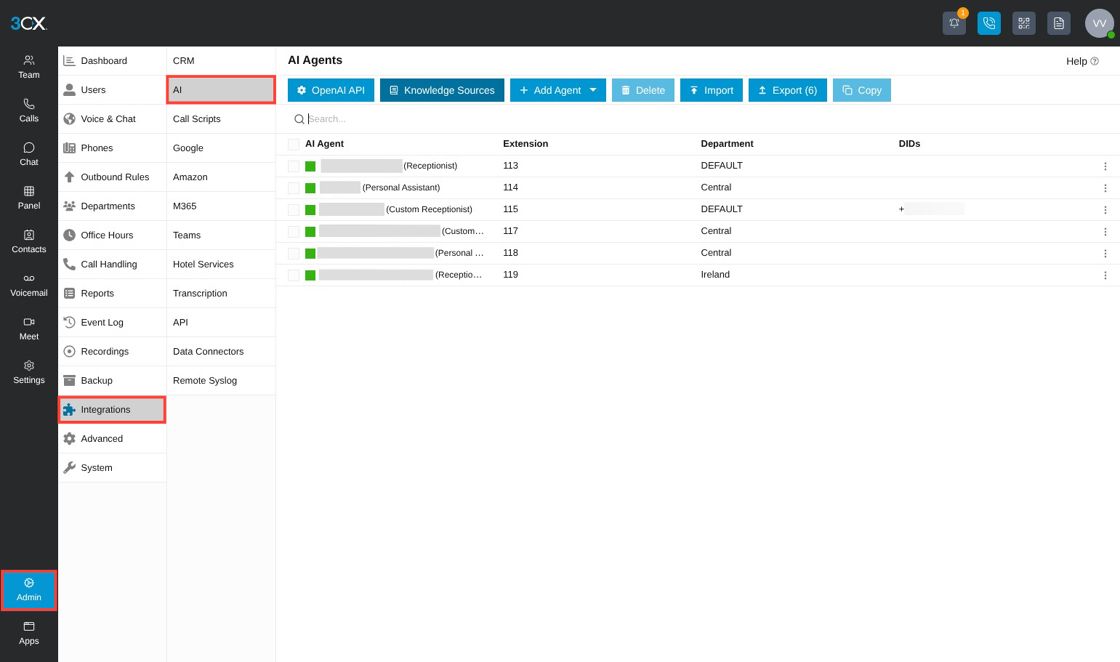
Navigate to your 3CX, select "Admin", then "Integrations", then "AI".
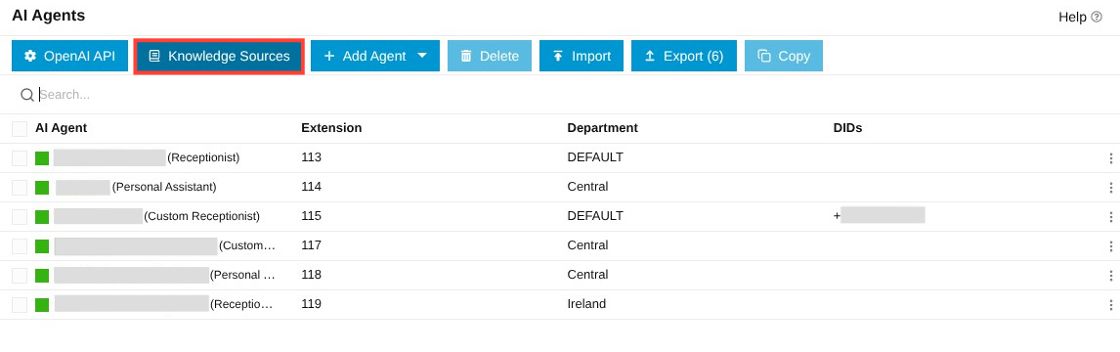
Click "Knowledge Sources".
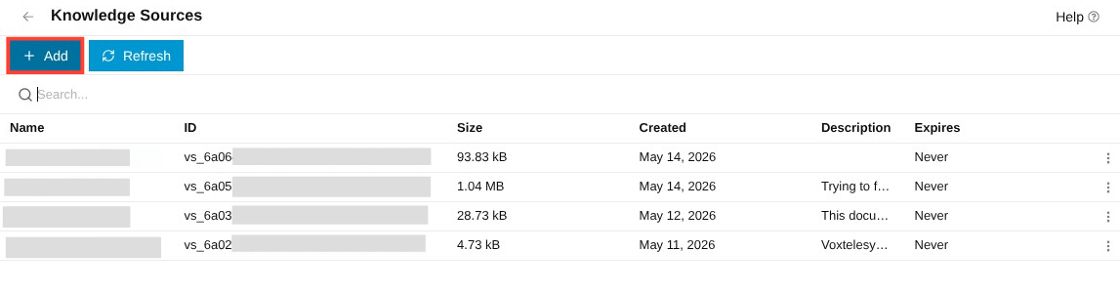
Click "+Add" to add a new Knowledge Source.
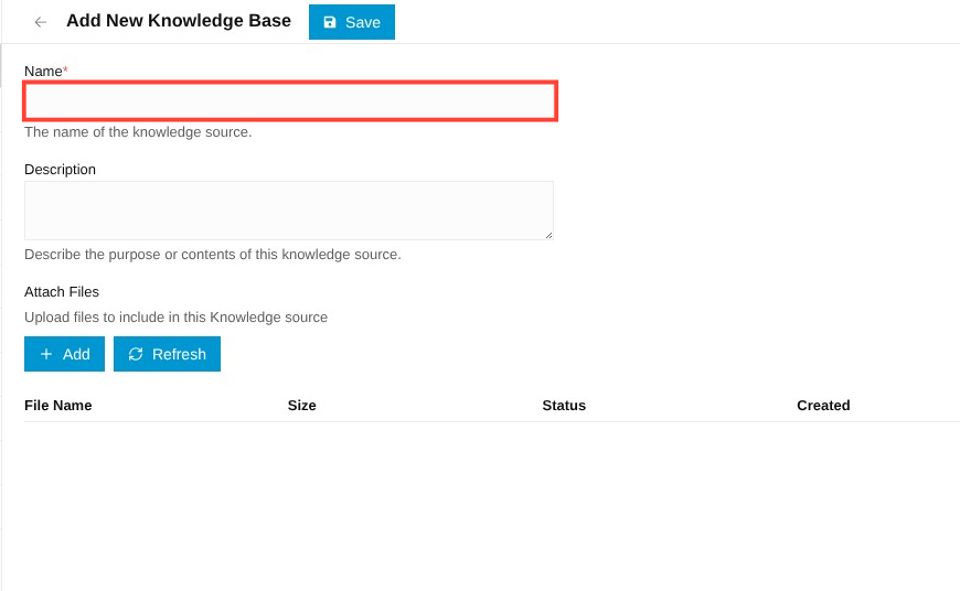
Enter the name of your Knowledge Source in "Name" field.
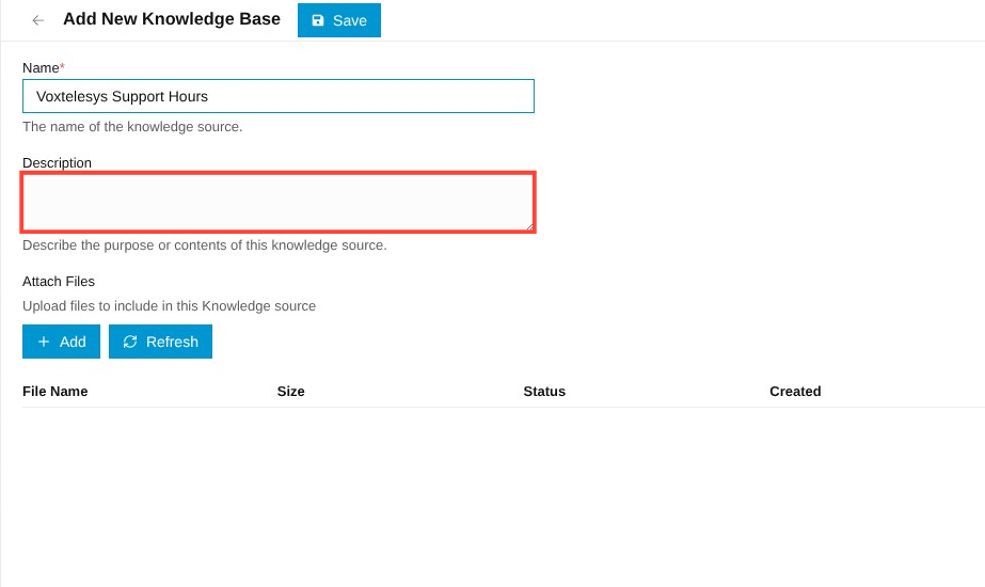
Enter a description of your Knowledge Source.
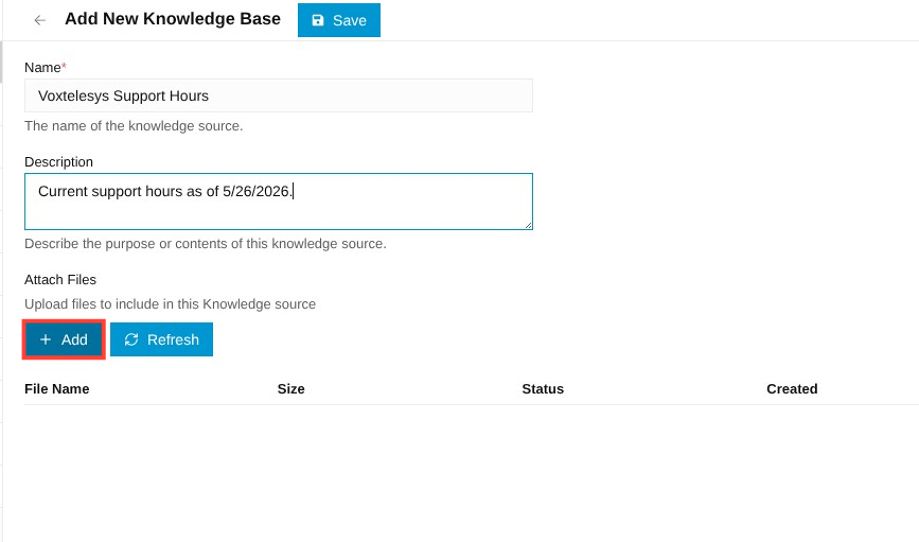
Click "+Add" to attach files.
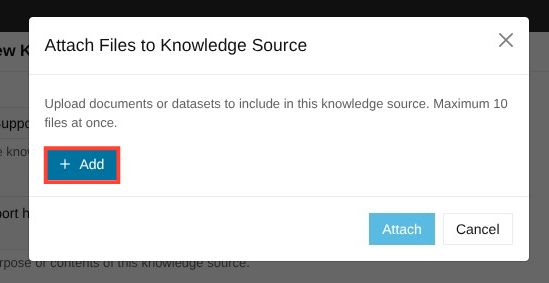
Click "+Add" again under Attach Files to Knowledge Source to upload documents from your computer.
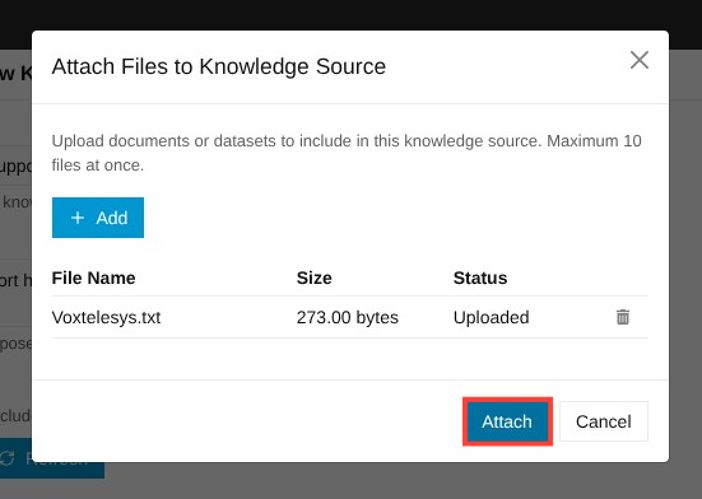
Once you have your source(s) uploaded, click "Attach" to upload them to OpenAI.
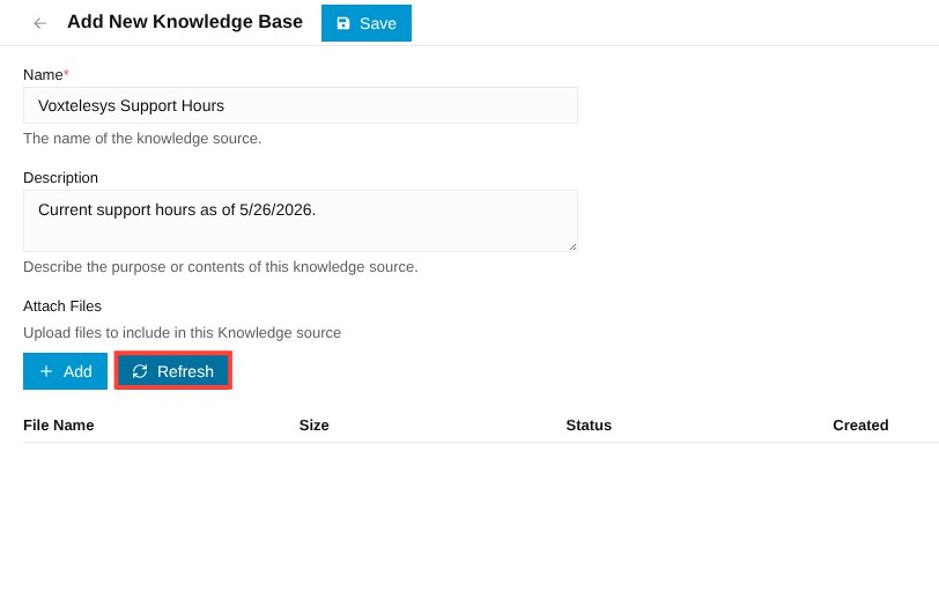
Click "Refresh" to review your new converted files and to verify that they uploaded correctly.
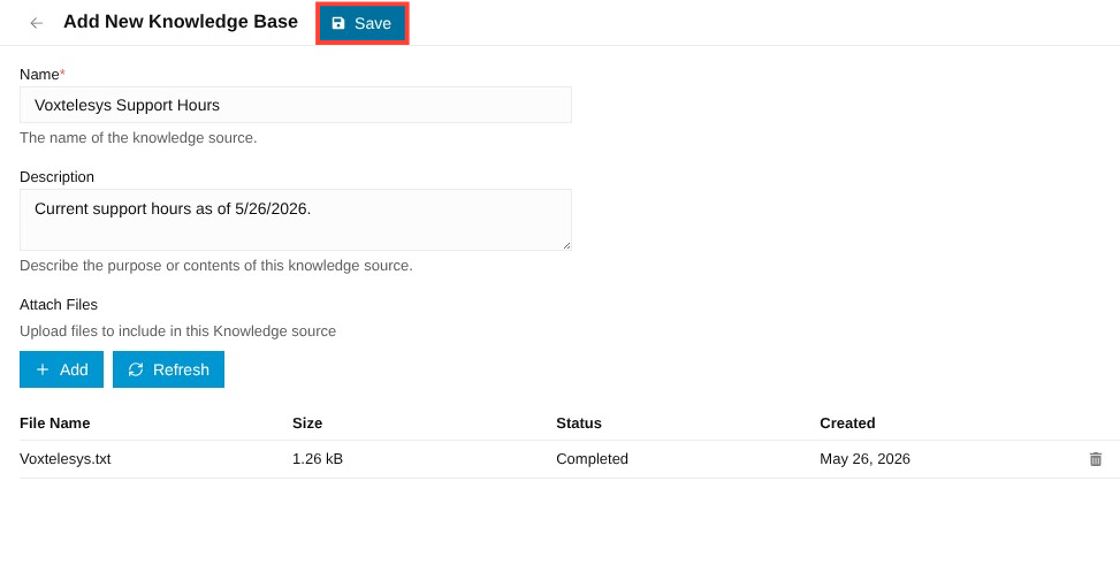
Once you have your sources uploaded, click "Save" to save your new Knowledge Source.
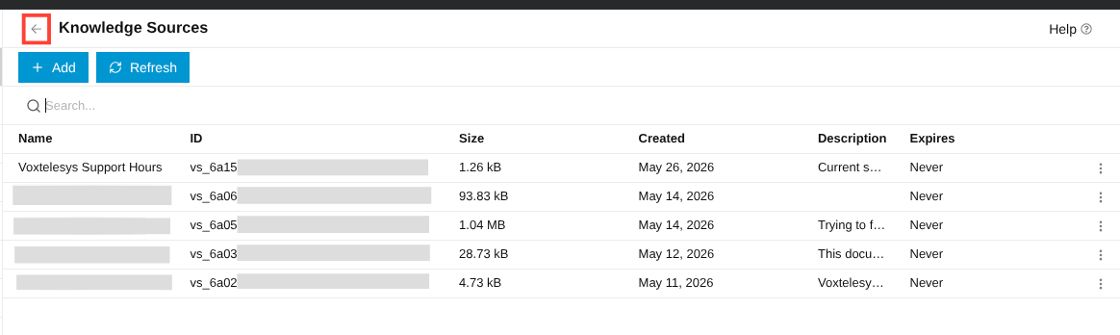
After you have created all your needed Knowledge Sources, navigate back to AI Agents list.
Your new Knowledge Source, is now available to assign to your AI Agents! Make sure to assign the new Knowledge Source to each of the desired AI Agents.